A ready-to-use Microsoft Excel Template for a dynamic Project Calendar, displaying regular Project Meetings and Deadlines for one selected week
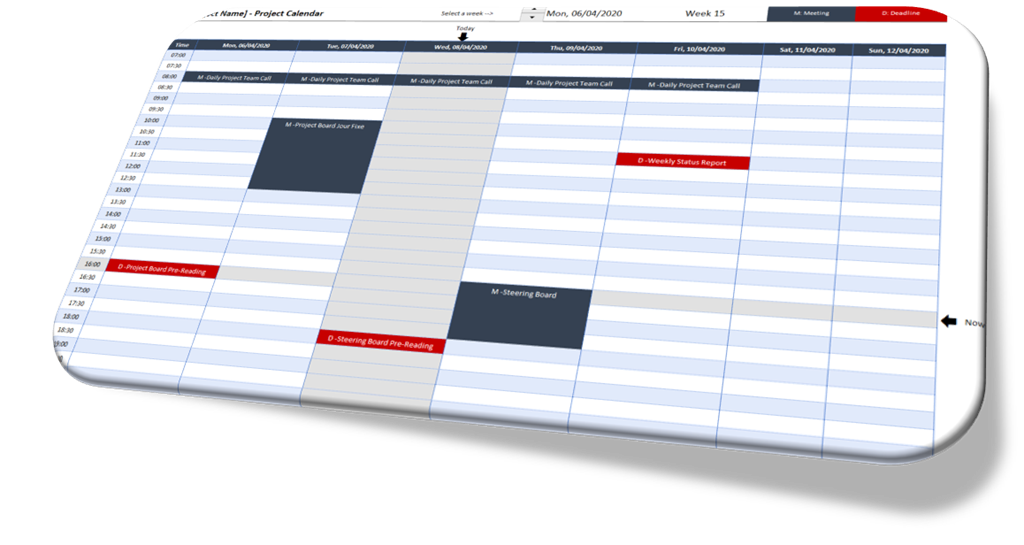 As per the subtitle of this blog (see above), Clearly and Simply is about data analysis, modeling, simulation and data visualization.
If you are a long time reader of this blog (and I am aware there are only a handful), you know that – from time to time – I also post something about Project Management.
I already published posts here about
- interactive checklist templates (Microsoft Excel Check List Template and Microsoft Excel Check List Compilation)
- how to export tasks from Microsoft Project to Outlook
- how to import tasks from a Microsoft Project file into Excel
- how to create a Gantt Chart in Microsoft PowerPoint from a Microsoft Project file.
Following this tradition, today’s post provides another little piece out of my Project Management Toolbox: a ready-to-use, dynamic Project Calendar Template in Microsoft Excel. Of course, including the template for free download.
A Dynamic Project Calendar
The goal is to visualize all relevant meetings (like Steering or Project Boards, Project Team meetings, daily Scrum calls, etc,) and deadlines (like delivery dates of pre-reading documents) of a project in a weekly overview:
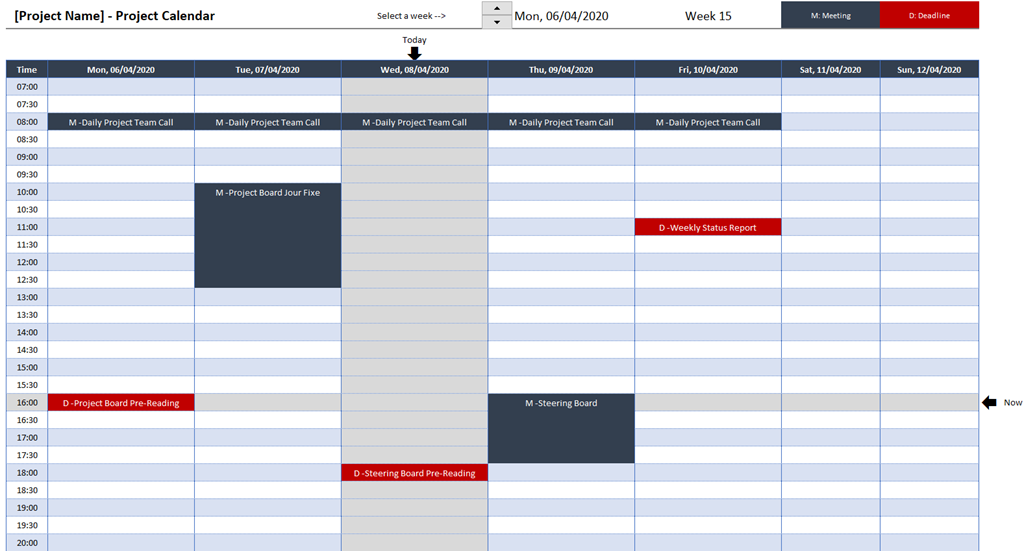 The user selects a week using the spin button at the top and will see all relevant appointments and deadlines of this week. Today and the current time will also be highlighted.
What do you need it for?
You may ask: “why would I need a template showing all regular project meetings, if I can simply look into my Outlook calendar?”
Well, for several reasons:
- A project calendar should be one part of your overall project documentation and is especially helpful when your project will undergo an audit or review
- Not all project members will attend all regular meetings, i.e. they will not have all appointments and deadlines in their calendars. The Project Calendar can be a useful reference for them to see what happens when and what has to be delivered when
- The Project Calendar is very helpful when initially setting up the meeting structure of an upcoming project to see possible clashes of appointments and to define deadlines for e.g. the delivery of pre-reading documents
- It is also very useful when onboarding new project members
How to use the Template
The process of using this template for your own project is pretty simple:
Step 1: Download and open the Excel workbook (download link see below)
Step 2: Go to the worksheet [Control] and define the start date of your project in cell C4. Select a Monday, if you want the calendar view to show the week from Monday to Sunday (the view Europeans are used to) or a Sunday, if the view shall display the week from Sunday to Saturday (usually preferred in the US)
Step 3: Go to the worksheet [Calendar Data] and delete everything inside the table right to the column [ID]:
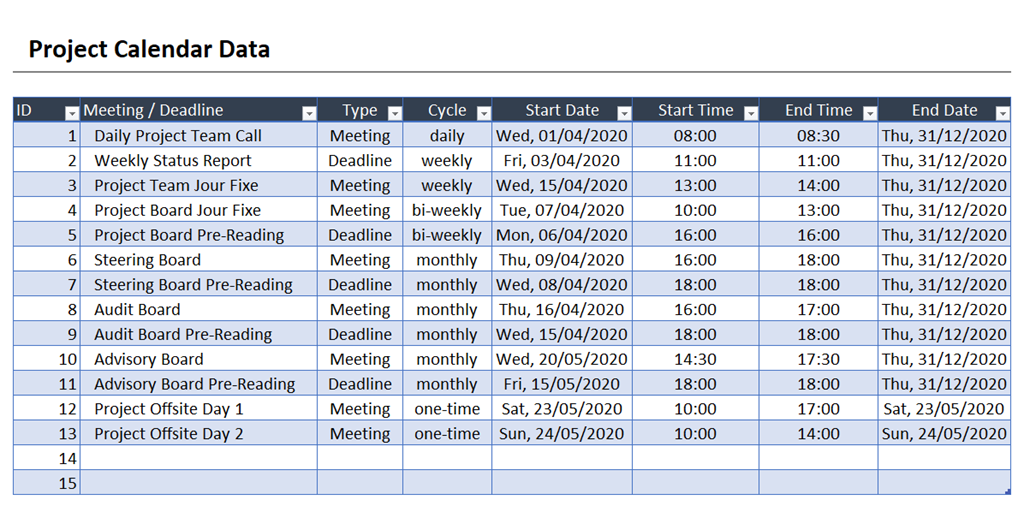 Now insert your own data. The table structure is very simple and should be self-explanatory. Just 2 hints:
- For weekly and bi-weekly items, the weekday of [Start Date] defines the weekday of this meeting or deadline.
- In column [End Date] you can define, from when on this meeting or deadline will not be relevant anymore. For the items running throughout the entire project, you define the end date of the project as the [End Date]. For temporary meetings, e.g. like meetings within a 2-weeks sprint, you set the end date of this meeting series to the date of 2 weeks after the start date.
The Implementation
Actually, this is a very simple Excel workbook. No VBA included, only a few formulas. Having said that, the calculation inside the value area of the weekly view is a pretty complex array formula.
I will not explain this formula here in detail.
If you only want to use the template in your project, you do not necessarily have to understand how it works. Just be aware that it is an array formula which needs to be entered by CTRL-Shift-Enter. To avoid unintentional changes of the formulas, I recommend to protect this sheet.
If you are an advanced Excel user and interested in how it works, have a look at it for yourself and let me know any questions you might have in the comment section. If you find a better (i.e. shorter and easier to understand) formula to achieve the same output, please let me know.
Download the free Microsoft Excel Project Calendar Template
Download Project Calendar Template (zipped Microsoft Excel workbook, 23K)
Stay tuned.
Comments
19 responses to “Microsoft Excel Project Calendar Template”
Really awesome.
What I’d really like to see is something similar with a monthly view. Is that possible?
Jeremy,
from a technical perspective, a monthly view would be possible, too. You would have the week numbers in the rows and all appointments of one day would be shown one after the other without the entire hourly timeline of a day, just like the monthly calendar view in Outlook. This would require a more complicated formula than the weekly view and you would probably be better off by implementing this in VBA instead of using formulas.
That being said, I do not really see the value of a monthly view in a Project Calendar. The months would only differ in non-regular appointments (other than daily, weekly, monthly) and I do not think that this would be worth the effort.
Anyway, if you want to try, you can use the weekly template posted above as a starting point.
Robert
Great calendar. Is it possible to show both a meeting and a deadline on the same cell when they occur at the same time. I noticed that the meeting took precedence.
Gar
Gareth,
no, this is not possible with the current template posted for download above.
If you really need the option to display 2 events in the same cell, you would have to adjust the existing formula in order to concatenate the text of a possible second item to the first one. This could get tricky, though, because the formula is pretty complex already.
The second option would be to split every day into 2 columns and to display the text of the first item in the first column of the day and the (potential) second item in the second column of the day. This would probably be easier to implement, but it comes with a few disadvantages, too, e.g. less space to display the text descriptions.
I am sorry, but I do not see an easy way to realize what you are looking for.
That being said, in my humble opinion there shouldn’t be items (meetings and deadlines) on the same day and at the same time in a Project Calendar. If you are having a meeting, you shouldn’t have a deadline at the same time, because you can’t work on the delivery anymore. In other words, the deadline should be set to the hour right before the meeting starts.
I’m not an advanced user in Excel but trying to learn more and I wanted to find out more about how to use array, especially how you used it in your formula with index, match, and large. Would you have any pointers where I could understand how you used it? If I just look at guides of each function separately, I’m having difficulty understanding how it was used in your context.
Maia,
you are right, I used a very complex array formula. I am sorry, but I can’t provide a detailed description how this works. The formula goes across 25 lines combining IFERROR, INDEX, MATCH, LARGE, WEEKDAY, MOD and combines various Boolean arrays either by multiplication (= AND condition) or addition (= OR condition).
Explaining how this works in detail would require a very lengthy description and I doubt I would be able to really explain this in a way everyone can understand.
I recommend dissecting the formula step by step, take parts of it out to see the outcome of the different parts and thereby try to understand how the solution works.
If you are new to the concept of array formulas, you better start with reading a general introduction into arrays and simpler examples of array formulas. The formula in the workbook above is an advanced example and not really suitable for learning how to use arrays in Excel.
Task completed 1 hour
Is it possible to change letters “M” and “D” into something else?
Simply adjust the cells D13 and D14 on the worksheet [Control].
But how? Simply writing over it breaks the calendar 🙁
It seems like letter “M’ and “D” have to stay as the first letters, cannot be deleted or replaced. Adding anything after them doesnt break the calendar.
You are right. I forgot to mention that the “M” and “D” are hard-coded in the Conditional Formatting Rules. You need to adjust the formulas in the Conditional Formatting Rules on sheet [Project Calendar] according to the changes you make on the [Control] sheet.
Is there any template where you have implemented this, if yes can you share that it will be really helpful. If possible you can share a link to that
Yash Gupta,
there is a download link to the template at the end of the post.
Hi there, I am trying to add in some more controls but am having trouble with the formula to recognise the new additions (Meeting, Deadline, Event, Communications, Day of significance) Can you help?
Christina,
first, my apologies for this late reply. I am not very active on this blog anymore and I just noticed your comment. I am sorry.
In case your request is still relevant, here are my 2 cents on your question:
The formula on the sheet [Project Calendar] consists of nested IFERROR functions. One IFERROR function for each type of event (2 in my template: Meeting and Dead-line). If you need more types, you must add additional, corresponding IFERROR functions to the formula handling the new types. One IFERROR per new type. Also, you have to add the new types in the Types section on the sheet [Control] and add new Conditional Formatting rules to visualize the new types accordingly.
I know, this is a very brief explanation, but it is a pretty complex formula, and all the necessary changes are really hard to explain in a comment here.
Anyway, I hope this helps a little bit.
Hi Robert,
Is there a way to expand the calendar past 1 year? That seems to be the max I can go when going through the weeks.
If possible, is there a way I can add functionality where I can pick the month and year as well when looking for a specific week? Like a dropdown list on the calendar view
Josh,
the maximum value of the spin button is set to 52 (weeks). Right click on the spin button, select Format Control and expand the maximum value as you like. You can also change the starting date of the timeline in cell C4 of worksheet [Control]. Just change the value of the cell to the Monday of the week in which your project starts.
An option to select a specific week in a selected year would also be possible by replacing the spin button by e.g. 2 combo boxes, one for the year and one for the week. The formula to calculate the start date of the current week (cell F2 on [Project Calendar]) needs then to be adjusted to return the Monday of the selected week based on the user selection in the 2 combo boxes. A little bit of an effort, but no rocket science.
I hope this helps.
This helped a lot, thank you!