Export tasks and milestones from your project plan to Outlook tasks, appointments or notes
 Clearly and Simply claims to be a blog on “intelligent data analysis, modeling, simulation and visualization”, and most of the posts are indeed discussing these topics. From time to time, however, I intersperse a post on project management, since project management activities always come along with most of my projects to a greater or lesser extent.
I suppose this might be the case in your professional life as well. A couple of months ago I published a post on how to export a Gantt chart from Microsoft Project to Microsoft PowerPoint. This post was extremely well received by our readers. Thus, I thought publishing another article on how to export from mpp files to other Microsoft Office applications might do no harm.
Today’s post provides a very simple tool to export tasks or milestones from your Microsoft Project plan to Outlook, either as a task, an appointment or a note. As always, including the tool for free download.
The purpose
The purpose of the little tool is pretty simple: If you are in charge of managing a large project or if you are somehow part of such a project, you are probably responsible for at least some tasks and milestones within this project. I would assume, you do not look into the project plan every day, but for sure you are opening Microsoft Outlook every morning. By having all relevant milestones and tasks as appointments or tasks in your Outlook pst file, you make sure not to forget about them, since Outlook will remember you automatically.
Agreed, you can put the appointments and tasks into Outlook manually as well, but having a tool to do this comes in handy especially if it is a real big project. This little tool provides such a simple and time-saving feature.
How-to
As soon as you have the VBA code (see below) in your Microsoft Project file, exporting tasks and milestones to Outlook is a piece of cake: Simply select the tasks and milestones you want to export by clicking on the row headers. You can select non-continuous rows by keeping the ctrl-key pressed. Your Microsoft Project file will look like this:
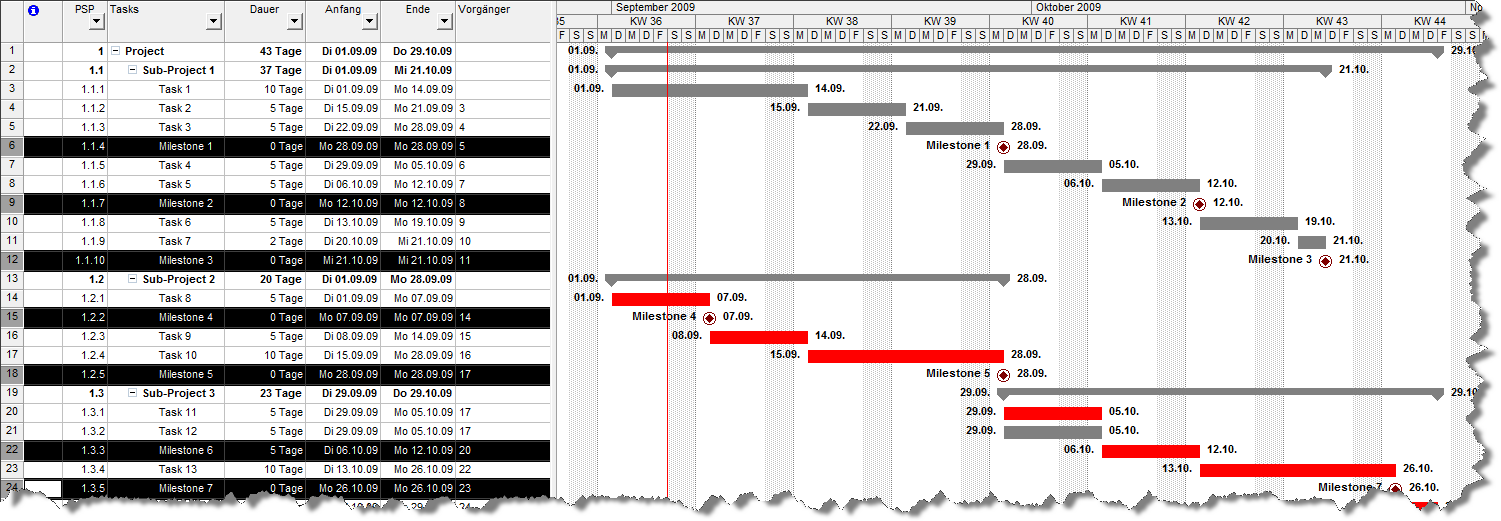
In this example, we selected all milestones. You will notice an additional menu called “Export to Outlook” in the main menu of Microsoft Project. If you – for instance – choose “Selection to Outlook appointments”, the tool will export all selected milestones to Outlook as appointments.
The result
Let’s assume you do not only convert the milestones of your project plan to Outlook appointments (as described above), but also export the tasks of “sub-project 1” to Outlook tasks and the 3 sub-projects to Outlook notes. Your Outlook will look like this:
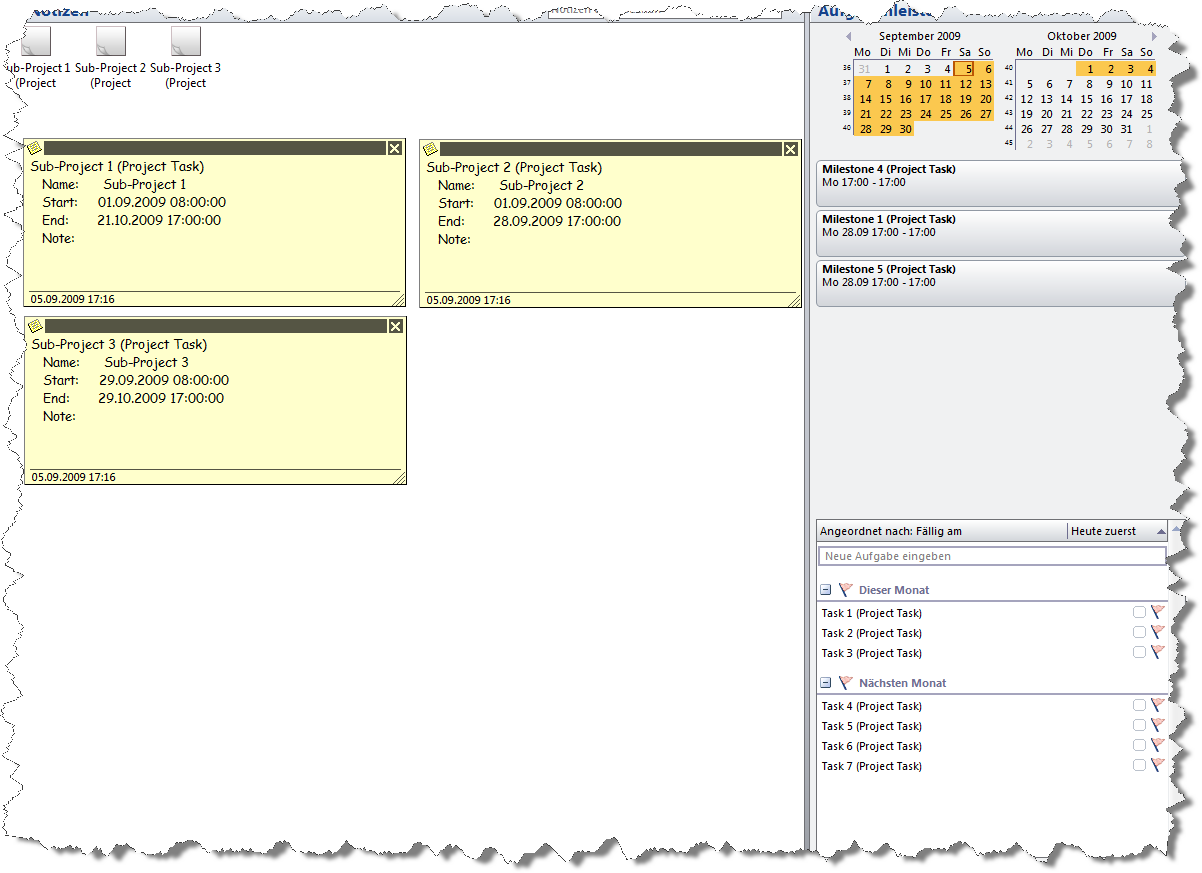
This is the view of the notes in Microsoft Outlook, but as you can immediately see, the milestones are in Outlook as appointments, the tasks of sub-project 1 are in your task list and there is a note for each sub-project.
Please don’t be confused by the look and feel. I created this screenshot using a German version of Outlook 2007. The tool should work with earlier versions of Microsoft Office and other language packages as well.
The VBA code
The VBA code to do this is pretty simple and it is available in the file posted for download below. Thus I am limiting myself to show only a small explanatory part of the code:
Option Explicit

Public myOLApp As Outlook.Application

Sub Export_Selection_To_OL_Appointments()
Dim myTask As Task
Dim myItem As Outlook.AppointmentItem

 On Error Resume Next
 Set myOLApp = CreateObject("Outlook.Application")

 For Each myTask In ActiveSelection.Tasks
 Set myItem = myOLApp.CreateItem(olAppointmentItem)
 With myItem
 .Start = myTask.Start
 .End = myTask.Finish
 .Subject = myTask.Name & " (Project Task)"
 .Categories = myTask.Project
 .Body = myTask.Notes
 .Save
 End With
 Next myTask

End Sub
As I said, it is pretty simple: Create an Outlook Application Object, run through all tasks in the Active Selection of Microsoft Project, create an Outlook appointment (respectively a task or a note) and assign the values of the Microsoft Project task to this appointment.
That’s it.
The procedures for tasks and notes are pretty similar. All you need on top of this is some code to create and delete the additional item in the main menu.
The Download Link
Download Export Project Tasks to Outlook (Microsoft Project 2003, zipped, 61.0K)
The tool has been tested using Microsoft Project Standard 2003 and Microsoft Outlook 2007. Please let me know if there are any issues with other versions.
Final remark
I have to admit that I am using this tool solely to export milestones to appointments. But for the sake of completeness, I included the export to tasks and notes as well. Maybe some of you might find them useful.
What’s next?
The next couple of posts will discuss data analysis and visualization topics again. But as already mentioned, from time to time I will post on project management as well.
Stay tuned.
Update on October 4, 2009:
A couple of readers had difficulties using this little tool with different versions of Outlook or Project (see the comments below). As Jimmy Peña already pointed in the first comment to this post (see below), the root cause for this are missing or wrong references to the object libraries. Jimmy recommends to make the code late bound. Here is a version using late bound code for free download:
Download Export Project Tasks to Outlook late bound (Microsoft Project 2003, zipped, 61.0K)
Many thanks for the heads up, Jimmy.
Comments
259 responses to “Export Microsoft Project Tasks to Outlook”
Don’t forget to set a reference to the Outlook object library, otherwise the code won’t compile. Or, you could convert the code to late bound by changing your Outlook references to Object and replace olAppointmentItem with the number 3.
Jimmy,
you are absolutely right.
In fact I assumed most of the readers would download the example file posted above. Of course, the reference to the Outlook object library is set there.
Nevertheless I fully agree: if you copy and paste the VBA to your own project file, you definitely have to set the reference to the Outlook object library as well.
Many thanks for the hints.
By the way: I am an avid reader of your blog and I learned a lot from your posts. Thanks for the fabulous job you are doing at http://www.codeforexcelandoutlook.com/blog/
Keep the posts coming!
Thanks Robert! I usually keep my code late bound, because setting object library references is one more thing to remember. You avoid numerous problems, and the code isn’t much slower.
I am confused about one item. I downloaded the file. I then highlighted the rows. However I cannot find anything that says export to outlook. What am I missing?
Milan,
did you enable macros when opening the file? If you did, you should see an additional item in the main menu called “export to outlook”. If you are using Project 2007, it should be on the Add-In ribbon.
Please do not hesitate to come back if you have any problems.
Thanks Robert. I did not check the macros. I enabled them but now I get the error message
The macro “Export_Selection_To_OL_Tasks” cannot be found.
Thanks for your help anyway- I do appreciate it.
Milan,
I assume you are using Outlook 2003, right?
If so, I suspect your problem is exactly what Jimmy pointed to in the first comment on this post (see above). Probably you have to set a reference to the correct Outlook library.
Here is the how-to:
1. Go to the VBE (ALT-F11)
2. Select Tools|References
3. The references dialog box opens with the libraries selected on top of the list. I assume you will see – among others – something like “Not available: Microsoft Outlook 12.0 Object Library”.
4. Scroll down the list and select “Microsoft Outlook 11.0 Object Library” (for Outlook 2003).
Save and close your project file, open it again and enable macros.
If this does not solve the problem, please do not hesitate to come back.
Robert, thank you for the ideas. I have the same issue as Milan. I tried your tips, but I still get the same error.
Joe,
I just tested the file on a computer with Microsoft Project 2003 and Outlook 2002. I can reproduce the error and – as assumed – you have to set the reference to the right version of the Microsoft Outlook Object Library.
The method I described in my reply to Milan above worked like a charm for me.
Did you save and close the file and reopen it again?
If you still have the problem: what versions of Project and Outlook are you working with?
Robert, thank you for the useful macro. It was exactly what I was looking for!
I have a couple of questions:
– What is the best way to make this macro available in my own project files? Right now it only seems to work when the downloaded project file with your macro is also open.
– How can I make the created Outlook appointments all day events based on the Project task completion date, and show them as Free? Currently they seem to default to Busy with a duration of the project task.
Werner,
many thanks for your comment and questions. Here are my 2 cents:
Transfer the code to your own project file:
1. Open the example file posted for download and your own project file.
2. Go to the VBE (ALT-F11)
3. Copy the Modules ‘basCreateMenu’ and ‘basOutlookExport’ from the example file to your own file by dragging and dropping.
4. Double click on the object ‘This Project’ of the example file
5. Copy the VBA code in the editor and paste it into the object ‘This Project’ of your own file.
6. Save your file, close Microsoft Project, open your project file again and enable macros.
Make the exported appointments all day events with the status ‘free’:
1. Open your file
2. Go to the VBE (ALT-F11)
3. Double click on Module ‘basOutlookExport’
4. Insert the following code into the ‘With myItem’ statement of the Sub Export_Selection_To_OL_Appointments():
.BusyStatus = olFree
.AllDayEvent = True
I hope this will work for you. If not, please do not hesitate to come back.
Hello all- I am using Project 2002. I am having difficulties with this. I guess I will have to wait until my company upgrades. Thanks though- I appreciate your help!
Milan
Hi Robert,
thank you for your explanations!
I copied the modules and added the code to “This Project” as you described, and now I see the “Export to Outlook” entry in the menu bar.
But when I select tasks and click the menu entry, I get an error message
The macro “Export_Selection_to_OL_Appointments” cannot be found.
If I look under Tools/Macros I can see the macro with the MS Project file name in front (and a !).
If I try to run the macro from that place, I get an Compile error: User-defined type not defined for myOLApp as Outlook.Application.
I am using MS Project 2003 and Outlook 2007.
When I compare the references used in your sample project and my own project, in my own project the Microsoft Office 11.0 Object Library is missing. I also can’t find it in the list of available references. Don’t know whether that’s related in any way – just thought I mention everything I notice.
Thanks,
Werner
Robert,
Please disregard my previos message.
I discovered that the Microsoft Outlook 12.0 Object Library was not included in the references. When I added it, everything worked fine (including generating all-day events)!
Thanks again for the useful tool!
Werner
Milan, Joe, Werner,
I just updated the post with a version using late bound code to avoid the issues you obviously had with the object references. Please let me know, if it is still not working for you.
great piece of work. thank you very much. but still error with “missing: Microsoft Outlook 12.0 Object Library” and Export_to_selection_OL_task. Any ideas of how to correct. I tried the posts but to no luck thanks neer
Neer,
many thanks for your comment.
Did you download the late bound version (see the update at the end of the post)? If you did, the error ‘missing: Microsoft Outlook 12.0 Object Library’ should not show up.
If you still get the error, did you try the how-to I described in my answer to Milan’s first comment (see above)?
If you did and it is still not working: what versions of Project and Outlook are you using?
Very cool! Sure, there are many enhancements and features one could wish for. But your tool is a very useful contribution to saving time, effort and headaches from ommissions. One thing I wish for is the ability to link back to the “source” project file from, say, an Outlook task that was generated from it. That way one could theoretically toggle between the forest and the tasks…
Ben,
many thanks for your comment.
I agree, the little tool is reduced to the max and leaves a lot of room for improvements. I just wanted to describe the basic idea and provide a very simple solution as a basis on which our readers may build their own enhancements according to their needs.
With regards to your wish: one possibility of realizing a link back to the mpp-file is replacing the line
.Body = myTask.Notes
by
.Body = “file://” & ActiveProject.Path & “\” & ActiveProject.Name & “.mpp”
You will have to add a ‘<' at the beginning of the string and a '>‘ at the end. I can’t do this here since TypePad would try to interpret the string as a link in this comment as well…
Thus, a link to the project file is inserted in the body of the task or appointment. Clicking on the link would then open the mpp-file.
The drawback: this is a static solution, i.e. the link will be broken as soon as you change the name of the project file or move the file to another folder.
Hello , great plugins..
Just one point more – is it possible to analyze assigned resoources / their emails , and try to find it in the outlook contacts/exchange directory – during the export ?
By default all tasks are assigned to me – to be perfect it should be asigned (in the outlook) to the resources during the export
cheers
K
K,
no sweat. Simply replace the Sub Export_Selection_To_OL_Tasks in the VBA code by the following procedure:
Sub Export_Selection_To_OL_Tasks()
Dim myTask As Task
Dim myDelegate As Object
Dim myItem As Outlook.TaskItem
On Error Resume Next
Set myOlApp = CreateObject(“Outlook.Application”)
For Each myTask In ActiveSelection.Tasks
Set myItem = myOlApp.CreateItem(olTaskItem)
myItem.Assign
With myItem
Set myDelegate = _
myItem.Recipients.Add(myTask.Resources(1)._
EMailAddress)
myDelegate.Resolve
.StartDate = myTask.Start
.DueDate = myTask.Finish
.Subject = myTask.Name & ” (Project Task)”
.Body = myTask.Notes
.Categories = myTask.Project
.Display
.Send
End With
Next myTask
End Sub
Of course you need to have all email-addresses of the resources stored in the according field of the resource table of your project file.
Please be advised that the code will send the task only to the first resource assigned to the project task. If you have more than one resource assigned to a task, you will have to add another loop in the procedure.
I hope this will be helpful.
What if I would like to post the appointment or task to another persons outlook via their email address or another way? Can this be done?
Hi
Great macro. For me, the original file works like a charm. The integration of Office-apps is a good cause (e.g. link word-docs to your project-file; in my opinion a good evolution would be that you never have to explore your file system again but always be working in a program/on some project)! I do wonder however if it is possible to make this function available for every project and thus also for every new (or at least for every new)?
Niklas,
thanks for your comment. I might be misunderstanding your request, but it seems to me as if your question is the same as K already posted (see 2 comments above yours)? Have you tried the solution I suggested in my reply to K?
If I misunderstood your request, please do not hesitate to come back.
Sesy,
many thanks for your comment.
If you want to make the macro available in every new project, you have two options (as far as I know):
First delete all tasks and milestones in the example file and save it as a template (mpt-file).
Option 1 is using this template whenever you create a new project file.
Option 2 is saving the template as “global.mpt” and copying this file to the MS Project folder:
C:\Users\[your user name]\AppData\Roaming\Microsoft\MS Project\11\1031
I strongly recommend making a copy of the existing global.mpt first to be able to restore the file if anything went wrong. After restarting Microsoft Project, every new project file should include the macros.
If you want to make the VBA available in every project file, you have to create an Add-In. To be honest, I can’t give you a detailed how-to since I never did that before. But I am sure Google will help you to find a tutorial.
Hi Robert
Thanks for your answer. I tried option 2 and it works. Thanks!
PS: saving your file as global.mpt reduces the global template to about an half it’s original size. I’m wondering what else went out.
sorry, did not see the post above. Please disregard my previous post.
Ok, I got it working with tasks, what if I want to send it as an appointment? I cant get that working.
Niklas,
replace the existing Sub to export appointments by the following code:
Sub Export_Selection_To_OL_Appointments()
Dim myTask As Task
Dim myDelegate As Object
Dim myItem As Outlook.AppointmentItem
On Error Resume Next
Set myOlApp = CreateObject(“Outlook.Application”)
For Each myTask In ActiveSelection.Tasks
Set myItem = myOlApp.CreateItem(olAppointmentItem)
myItem.Assign
With myItem
Set myDelegate = myItem.Recipients.Add(myTask.Resources(1)._
EMailAddress)
myDelegate.Resolve
.Start = myTask.Start
.End = myTask.Finish
.Subject = myTask.Name & ” (Project Task)”
.Location = “tbd”
.Categories = myTask.Project
.Body = myTask.Notes
.Display
.Send
End With
Next myTask
End Sub
The code creates and opens the appointment. All you have to do is to press the “send” button and it will be sent to the recipient by Outlook.
I hope this will be helpful.
Sesy,
thanks for the feedback.
I can reproduce what you described. In fact, if you are opening a new file (based on global.mpt), copy the VBA code to this file and save the file as global.mpt, the file size of the new global.mpt is even much smaller (129k compared to 662k). I can’t tell you why, though. I suspect the original global.mpt coming with the installation is somehow bloated.
Anyway, if you are missing anything in your new project files, I hope you followed my recommendation and made a backup of the original file.
Thanks! It works great.
One more thing though, what if I would not like it to be in my calendar, onlöy in the recipients calendar. Now I get into my calendar and when I remove it, outlook will send a cancellation request to the recipient.
And if I could put it into other peoples calendars I would also like it to be sent without having to manually pressing send button.
For example, if possible I would like remove the code .display and just use .send but that does not seem to work.
Niklas,
Thanks for your questions.
With regards to your first comment: I think it works as designed: You are sending the task or milestone as an appointment / meeting request to someone and since you are the organizer of this “meeting”, Outlook automatically creates the appointment in your calendar as well. From my point of view this makes definitely sense.
Otherwise it would be a meeting with one attendee only (the recipient you are sending it to) and this would be a bit strange, wouldn’t it?
If you want to have the reminder in someone else’s outlook only, send it as a task.
On to your second comment:
Comment out or delete the line “.display” and add the following line within the WITH-statement:
.MeetingStatus = olMeeting
Outlook will send the appointment without opening the meeting request first.
I hope this will be helpful.
Thanks for this. This works perfect with office 2010, just needed to drag and drop the macros to the global scope and make a nice little ribbon panel for them. Might have to dig into the VB a little when I have time see if it can create a new calendar named after the project file or at least get the appointments all in a non-default calendar.
Thanks again.
Per earlier, “You will notice an additional menu called “Export to Outlook” in the main menu of Microsoft Project.”
I feel dense, but I can’t find the export function anywhere.
Please help. Thanks.
Ok, I am dense. Had to enable macro’s…oops.
Thanks for the macro. It’s half my battle. However, after some thought, Project has a native import for Outlook tasks. Is there a way to reverse the process for other than Outlook tasks? For example, import a calendar event into project?
Once more.
With a lot of searching, I can’t seem to find the right answer.
To handle multiple project files, is there a way to replace “& ” (Project Task)”” with the project file name? Especially WITHOUT the file extension.
Thanks.
Ok, with many trials, figured this one out.
.Subject = myTask.Name & ” (” & myTask.Project & “)”
T.Garren,
many thanks for your comments. The following code imports all calendar items from Outlook into Microsoft Project:
Sub Import_OL_Appointments()
Dim myTask As MSProject.Task
Dim myOLApp As Object
Dim myItem As Object
Dim myCalItems As Object
Dim myOLNameSpace As Object
On Error Resume Next
Set myOLApp = CreateObject(“Outlook.Application”)
Set myOLNameSpace = myOLApp.GetNamespace(“MAPI”)
Set myCalItems = myOLNameSpace.GetDefaultFolder(9).Items
For Each myItem In myCalItems
Set myTask = ActiveProject.Tasks.Add(myItem.Subject)
myTask.Start = myItem.Start
myTask.Finish = myItem.End
Next myItem
End Sub
This can take quite a while, depending on the number of appointments you have in your Outlook calendar.
I hope this will be helpful.
This is excellent! I love this!
Here’s my request: Can I export more than just the task description, start and finish date? What other fields can I export? What about a custom project field?
Thia,
many thanks for your comment. As far as I know, you can export everything you want. It’s all about the properties of the VBA object model.
The MSDN Office Developer Center should get you going.
Of course, the object models of Project and Outlook are different, thus you have to decide which property of an Outlook task should receive e.g. the project field “text1”.
I hope this will be helpful.
This blog is working out great for me…Thank you all.
My question, is there a way to define the Task name of a sub task that I will be setting up as an Outlook task?
For example the Task is “Testing” and the sub-task is “Define Testing Plan”.
I would like the subject to read: Testing – Define Testing Plan.
Thanks,
Josh
Josh,
no sweat: simply replace
.Subject = myTask.Name & ” (Project Task)”
by
.Subject = myTask.OutlineParent.Name & ” – ” & myTask.Name
Many thanks for your comment and the appreciation.
Thanks Robert, I also found this solution by going to the “MSDN Office Developer Center”.
Now to make it harder for myself I am trying to use the Outline Level to get the true Parent of the task (actual project name).
For example I need to set a task reminder for a task that is at level 4 but would like to include the level 1 (actual project name) so that the task I assign makes some since to the users.
Can someone help in this area?
Josh,
many thanks for coming back. The following code worked like a charm for me:
Sub Export_Selection_To_OL_Tasks()
Dim myTask As Task
Dim myTaskParent As Task
Dim myItem As Object
On Error Resume Next
Set myOLApp = CreateObject(“Outlook.Application”)
For Each myTask In ActiveSelection.Tasks
Set myItem = myOLApp.CreateItem(3)
Set myTaskParent = myTask
While myTaskParent.OutlineLevel > 1
Set myTaskParent = myTaskParent.OutlineParent
Wend
With myItem
.StartDate = myTask.Start
.DueDate = myTask.Finish
.Subject = _
myTaskParent.Name & ” – ” & myTask.Name
.Body = myTask.Notes
.Categories = myTask.Project
.Save
End With
Next myTask
End Sub
I hope this will be helpful.
Thanks again Robert that is exactly what I was looking for.
I come back and find so many comments on this post! I like to delude myself into believing that I started the avalanche. The code snippets in the comments deserve their own blog posts.
Jimmy,
many thanks for coming around again.
Actually I think you did start the avalanche of comments on this post. I was surprised by the number of reactions as well and I somehow missed the right point in time to transfer the discussion to another post. Maybe I will summarize the content of all comments above in a further post on this topic some later day.
Thanks, Robert. Seriously, this blog is a life saver and this is coming from a person who doesn’t know anything about VBA.
I was a little confused by your comment: “Of course, the object models of Project and Outlook are different, thus you have to decide which property of an Outlook task should receive e.g. the project field “text1″.”…until it started to poke around the MSDN site.
So I’m assuming that you mean, I need to first know which Project and Outlook fields that I’d want to map and export, correct? I’ve created two custom fields in Outlook Tasks, and two custom fields in Project 2010 but don’t know which object to use to insert into the code.
Should I be trying to add something here:
.StartDate = myTask.Start
.DueDate = myTask.Finish
.Subject = myTask.OutlineParent.Name & ” – ” & myTask.Name
.Body = myTask.Notes
.Categories = myTask.Project
.Save
something like .Text1=???
Thia,
thanks for coming back and thanks for the appreciation. I am sorry that I confused you with my previous comment, but the way you figured it out on the MSDN Developer Center is exactly the way you have to go.
If you want – for instance – to export the content of the Project field “Text1” to the body of an Outlook appointment, simply insert the following line into your VBA:
.Body = myTask.Text1
As you said, simply decide which Project field you want to map / export to which Outlook field and insert the according line of code.
I hope this will be helpful.
Hi! THANKS for this great Macro to get MS Project tasks into Outlook! I was looking for something like that for ages 🙂
But: Is there a way to get the information BACK into MS Project, e.g. when the assigned task was marked as completed in Outlook Tasks?!? (I already read your reply to Ben Major from Oct. 11, 2009 – attaching a link to Outlook would be the alternative. Still, the chances are high that several people would try to open the file at the same time then…)
THANKS & best regards!
Ricardo,
many thanks for your comment and question. Of course it is possible to put information from Outlook back to Project using VBA. This would be pretty much along the lines described in the article above, just the other way round.
However, there would be quite a lot of things to take care of like the link to the original project file or the problem to identify the corresponding task to be marked as complete. What if the names of the tasks in the project file changed or if there are duplicate task names in the project plan?
I guess writing a macro to synchronize tasks and milestones in a project file and your outlook pst would be a real complex project. What do you think?
Hi, Robert…
Thanks for the follow up. But, I’d really love (and have just spent the past 3 hours trying to learn VBA!) to create a couple of custom columns and add them to the Outlook tasks.
I just realized that you said .Body = myTask.Text1 for an appointment, and I’m trying to understand your code for the tasks.
I got as far as learning that I’d need something like:
Sub Export_Selection_To_OL_Tasks()
Dim myTask As Task
Dim myItem As Object
Dim myValue As Object
|and that at some point in the code I’d need to add the line below. But where?
MyValue = objItem.ItemProperties(“propname”)
On Error Resume Next
Set myOLApp = CreateObject(“Outlook.Application”)
For Each myTask In ActiveSelection.Tasks
Set myItem = myOLApp.CreateItem(3)
With myItem
.StartDate = myTask.Start
.DueDate = myTask.Finish
.Subject = myTask.Name & ” (Project Task)”
.Body = myTask.Notes
.Categories = myTask.Project
.Save
End With
Next myTask
End Sub
Any help you could give would be much appreciated! I can send cookies, cake, or beer…your preference!
Thia,
many thanks for your question. I am not sure whether I understood you request correctly. It looks to me as if you want to do the following:
You have 2 customized columns in your project file, e.g. Text1 and Text2, filled with some information. Let’s say for a given task, the value in Text1 is “ABC” and the value in Text2 is “DEF”. As soon as you export this task to Outlook, you want to have the string “ABC / DEF” in the body of the Outlook task. Is this what you are looking for?
If so, simply replace the line
.Body = myTask.Notes
by
.Body = myTask.Text1 & ” / ” & myTask.Text2
in the Sub Export_Selection_To_OL_Tasks()
That’s it.
If I misunderstood your question, please do not hesitate to come back.
I might be missing something here (I am using Project 2007 Prefessional with Outlook 2003 or 7 depending on the machine) does this mean I can avoid using Project Server and link application to application instead?
Works thank you very much. However, since there are no resources in the resource sheet can you export tasks to each resources inbox?
John,
have you seen my reply to K’s question above (posted on October 17, 2009)?
Does this answer your question?
Hi, Robert!
In my MS Project file, I have two custom fields. I want to import these not into the body of the Outlook task, but as an additional field. My problem is 1. I don’t know how to write that code and 2. I don’t know how to map that to a customized field in outlook.
I’m really close to giving up 🙁
Thia,
aaahhh! I think I finally got it now:
Let’s assume, you have 2 custom fields in your Outlook task view called “CustomField01” and “CustomField02” (already defined in Outlook). You want to export the data in the Project field “Text1″ to””CustomField01” and “Text2” to “CustomField02”. Is this the problem? If so try the following code:
Sub Export_Selection_To_OL_Tasks()
Dim myTask As Task
Dim myItem As Outlook.TaskItem
Dim myProp As UserProperty
On Error Resume Next
Set myOLApp = CreateObject(“Outlook.Application”)
For Each myTask In ActiveSelection.Tasks
Set myItem = myOLApp.CreateItem(olTaskItem)
With myItem
.StartDate = myTask.Start
.DueDate = myTask.Finish
.Subject = myTask.Name & ” (Project Task)”
.Body = myTask.Notes
.Categories = myTask.Project
Set myProp = .UserProperties.Add(“CustomField01”, olText)
myProp = myTask.Text1
Set myProp = .UserProperties.Add(“CustomField02”, olText)
myProp = myTask.Text2
.Save
End With
Next myTask
End Sub
Worked for me like a charm. I hope this will be helpful.
Robert,
excellent job! Thanks for posting your work!
Dear Robert,
This is a wonderful work. Thank you very much for sharing with us.
Cheers
Hello Robert.
This site has been a great help to me so thanks very much. I need a mix of a few different solutions that you have provided. Lets say my MS Project structure is Parent/Sub Parent/Task. I need to export tasks with following requirements. 1)Have the Categories field in OL to show the “Sub Parent name”. 2)The Subject field in OL to show “Task – ResourceInitials”. 3)Have each resource email address linked to their allocated task (In MS Project I have the individual email addresses under the ResourceNames field).
I hope you get what I mean. This is what I have so far…
Sub Export_Selection_To_OL_Tasks()
Dim myTask As Task
Dim myTaskParent As Task
Dim myItem As Object
On Error Resume Next
Set myOLApp = CreateObject(“Outlook.Application”)
For Each myTask In ActiveSelection.Tasks
Set myItem = myOLApp.CreateItem(3)
Set myTaskParent = myTask
While myTaskParent.OutlineLevel > 2
Set myTaskParent = myTaskParent.OutlineParent
Wend
With myItem
.StartDate = myTask.Start
.DueDate = myTask.Finish
.Subject = myTask.Name & ” – ” & myTask.ResourceInitials
.Body = myTask.Notes
.Categories = myTaskParent.Name
.Save
End With
Next myTask
End Sub
Babaluha,
many thanks for your question. You may want to try this code snippet:
Sub Export_Selection_To_OL_Tasks()
Dim myTask As Task
Dim myTaskParent As Task
Dim myDelegate As Object
Dim myItem As Outlook.TaskItem
On Error Resume Next
Set myOlApp = CreateObject(“Outlook.Application”)
For Each myTask In ActiveSelection.Tasks
Set myTaskParent = myTask
While myTaskParent.OutlineLevel > 2
Set myTaskParent = myTaskParent.OutlineParent
Wend
Set myItem = myOlApp.CreateItem(3)
myItem.Assign
With myItem
Set myDelegate =myItem.Recipients.Add(myTask.Resources(1).EMailAddress)
myDelegate.Resolve
.StartDate = myTask.Start
.DueDate = myTask.Finish
.Subject = myTask.Name & ” – ” & myTask.ResourceInitials
.Body = myTask.Notes
.Categories = myTaskParent.Name
.Display
.Send
End With
Next myTask
End Sub
Please be advised that you have to enter the email-address in Project in the corresponding field in the resource table.
I hope this will be helpful.
Thanks for that Robert.
I seem to be getting a “Compile Error” though. When I try and run the macros “Export_Selection_To_OL_Tasks” is on the error screen.
Another issue!
I tested my last script and sent a sample task to another PC and the Categories did not show in OL. They import fine into my OL from Project but when I sent the task the category field stayed empty on my colleagues OL. Your script will hopefully combat this issue.
Thanks Robert
When this works it will be unbelievably helpful so thanks in advance.
Babaluha,
the code worked for me like a charm. It is hard to answer your question why there seems to be a compile error in your project file. If you want to you send me an anonymized version of your project file by email (address see link on the left), I will have a look on it.
Robert,”
Your posts have been very helpful, I have taken code from yours and various other websites regarding the move of project tasks to outlook as appointments and have modified it with mostly success.
This is my first attempt at VBA script and have just picked up the logic using yours and various other websites.
However, when updating the project file with new start dates I would like to update the outlook appointment relating to that task.
Currently when I update it creates a whole new task and I am having to go through and delete all the previous appointments.
Running Otlook 2003 and Project 2003.
Is there anyway I could get the code
1. Create a new appt in outlook where it is a new task added in project (as it does now)
2. Check the appointment against the task and if changed update the existing appointment rather than creating a whole new one?
3.Leave unchanged tasks and appointments as they were.
Thanks in advance if you can do anything for me.
I have placed my current code below:
Sub OutlookLinkAppt()
Dim appOL As Outlook.Application
Dim mspTask As MSProject.Task
Dim olAppt As Outlook.AppointmentItem
Dim i As Integer
On Error GoTo objerror
Set appOL = GetObject(, “Outlook.Application”) ‘ if Outlook is running, this line will work
resumeplace:
For Each mspTask In MSProject.ActiveProject.Tasks
If Not (mspTask Is Nothing) And Not (mspTask.Summary = True) Then
Set olAppt = appOL.CreateItem(olAppointmentItem)
‘note that you can capture other Project fields into Outlook fields
olAppt.Subject = mspTask.Name & ” -” & mspTask.Text1 & “-” & MSProject.ActiveProject.Name & “-” & “(ID)” & mspTask.ID
olAppt.Body = mspTask.Notes & “-” & “(MS Project Task ID)” & mspTask.ID & “-(Baseline Start/Finish) ” & mspTask.BaselineStart & “/” & mspTask.BaselineFinish & ”
olAppt.Start = mspTask.EarlyStart
olAppt.End = mspTask.LateStart
olAppt.Categories = Left(MSProject.ActiveProject.Name, Len(MSProject.ActiveProject.Name))
olAppt.Mileage = mspTask.ID
olAppt.BusyStatus = Free
olAppt.ReminderSet = False
olAppt.AllDayEvent = True
olAppt.Save
Set olAppt = Nothing
End If
i = i + 1
If (mspTask Is Nothing) And Not (mspTask.Summary = True) Then
End If
Next
MsgBox i & ” tasks were exported or updated to Outlook as appointments”
Exit Sub
objerror: ‘ if Outlook is not running, this will work
Err.Clear
Set appOL = CreateObject(“Outlook.Application”)
GoTo resumeplace
End Sub
Craig,
many thanks for your question and for posting your VBA code. I think with your comment, the time has definitely come to transfer the discussion to a new blog post. I will work on your request and (hopefully) come back with some ideas in a further article here soon.
I have to ask for your patience.
Hi Robert,
I am looking to export specific tasks as appointments to resources that have email address information coming from the AD. I tried using the code snippets above to do this, but I am getting the following error:
“user-defined type not defined”, and it seems to be highlighting the “Dim myItem As Outlook.AppointmentItem” as the incorrect code.
Any ideas?
Nick,
thanks for your question. Seems as if you are using the original version (early bound) and did not set the reference to the Outlook object library. Either you have to set the reference or to use the late bound version provided in the update section at the end of the post.
See also Jimmy’s comment (first comment on this article).
If this does not solve your problem, please do not hesitate to come back.
Great macro Robert! I have created a new calendar in outlook and would like to export to it. Could you help?
Aileen,
thanks for your question. Replace the existing sub “Export_Selection_To_OL_Appointments” with the following code:
Sub Export_Selection_To_OL_Appointments()
Dim myTask As Task
Dim myItem As Outlook.AppointmentItem
Dim myOLNameSpace As NameSpace
Dim myOLFolder As MAPIFolder
On Error Resume Next
Set myOLApp = CreateObject(“Outlook.Application”)
Set myOLNameSpace = myOLApp.GetNamespace(“MAPI”)
Set myOLFolder = myOLNameSpace.PickFolder
For Each myTask In ActiveSelection.Tasks
Set myItem = myOLFolder.Items.Add(olAppointmentItem)
With myItem
.Start = myTask.Start
.End = myTask.Finish
.Subject = myTask.Name & ” (Project Task)”
.Categories = myTask.Project
.Body = myTask.Notes
.Save
End With
Next myTask
End Sub
After clicking on “Selection to Outlook appointments”, a dialog window opens and you can select a folder (calendar). The selected tasks / milestones will then be exported to this calendar.
I hope this will be helpful.
Thanks Robert. I seem to be getting the following Compile Error: User-defined type not defined at Dim myItem As Outlook.AppointmentItem. Do you know what is causing this?
Aileen,
this is the object library issue again as described in the update at the end of the article.
My bad. Here is the late-bound code that should work for you as well:
Public myOLApp As Object
Sub Export_Selection_To_OL_Appointments()
Dim myTask As Task
Dim myItem As Object
Dim myOLNameSpace As Object
Dim myOLFolder As Object
On Error Resume Next
Set myOLApp = CreateObject(“Outlook.Application”)
Set myOLNameSpace = myOLApp.GetNamespace(“MAPI”)
Set myOLFolder = myOLNameSpace.PickFolder
For Each myTask In ActiveSelection.Tasks
Set myItem = myOLFolder.Items.Add(1)
With myItem
.Start = myTask.Start
.End = myTask.Finish
.Subject = myTask.Name & ” (Project Task)”
.Categories = myTask.Project
.Body = myTask.Notes
.Save
End With
Next myTask
End Sub
Let me know if this doesn’t work either.
Perfect! Thanks Robert.
Robert —
Just wanted to thank you for your work, and for the others for their comments and questions.
While I haven’t had the opportunity to fully explore your Project macro, I’ve done enough to know that it will satisfy the needs of my organization.
Thanks again to you and all of those who have contributed.
Jim
Robert —
This is reference Craig’s note on Friday, April 23, 2010 at 01:35 AM, where he talked about updating appointments.
I understood your macro, but am not sure how his works. Where would this code go, and how does it keep track of the appointments you’ve already created?
Again, I appreciate your work, and trust that you’ll forgive me for my ignorance.
Jim
Jim,
thanks for your comment.
I am embarrassed: In my reply to Craig’s comment, I promised to write a follow up to this article including the most interesting requests and code snippets from this ongoing discussion. I never did. My bad.
I am working on a different article at the moment (coming soon), but after that one, I will definitely come back with a follow-up post on exporting from Project to Outlook, including the options to update appointments and tasks after the project plan changed. I have to ask for your patience again.
thank you for this wonderful tool!
Hi Guys,
thanks for your great effort.
I tried to run it, but none of them worked.
please let me know I could do that!
Cheers
Shawn
Shawn,
can you elaborate a bit which problems you are having and which versions you are using?
Or send your file by email and I will have a look at it (email-link on the left).
Hello All,
I am getting a User-defined error on this macro. Here is the code:
Sub Export_Selection_To_OL_Tasks()
Dim myTask As Task
Dim myDelegate As Object
Dim myItem As Outlook.TaskItem
On Error Resume Next
Set myOLApp = CreateObject(“Outlook.Application”)
For Each myTask In ActiveSelection.Tasks
Set myItem = myOLApp.CreateItem(olTaskItem)
myItem.Assign
With myItem
Set myDelegate = _
myItem.Recipients.Add(myTask.Resources_1._
EMailAddress)
myDelegate.Resolve
.StartDate = myTask.Start
.DueDate = myTask.Finish
.Subject = myTask.Name & ” (Project Task)”
.Body = myTask.Notes
.Categories = myTask.Project
.Display
.Send
End With
Next myTask
End Sub
Any help would be appreciated.
Thanks
Chris
Chris,
thanks for your comment. Unfortunately you do not specify which error you are receiving, but I suspect it might be the missing reference to the Outlook Object Library. See the update note at the end of the article.
Either set the reference in the VBE (Tools|References) or switch to late bound code.
To use late bound code simply replace
Dim myItem As Outlook.TaskItem
by
Dim myItem As Object
and
Set myItem = myOLApp.CreateItem(olTaskItem)
by
Set myItem = myOLApp.CreateItem(3)
I hope this will solve the problem. If not, could you please describe which error you are receiving and at which line the code stops?
I tried to do this, but I got a compile error User defined type not defined) and highlights on following lines:
Dim myItem As Outlook.TaskItem
Set myDelegate = _
myItem.Recipients.Add(myTask.Resources(1)._
EMailAddress)
I am no programmer (unfortunately)…
I am using project 2007 and outlook 2007 and added the column emailaddress to my resource table.
That am I doing wrong?
Thanks!
Leo,
thanks for your comment.
Probably a missing reference to the Outlook Object Library again. See the update note at the end of the article.
Replace
Dim myItem As Outlook.TaskItem
by
Dim myItem As Object
and
Set myItem = myOLApp.CreateItem(olTaskItem)
by
Set myItem = myOLApp.CreateItem(3)
I hope this will solve the problem.
Awesome, now it works!
thank you for your fast reply and for making this funcionality available.
This will make my life so much easier…
Sorry to bother again. It works partly.
It opens an email, but does not add the recepient.
Any Idea?
I used the column Email Address from the resource sheet and added the email address in there.
thank you again!
Leo,
well, it should work if you have
a. the email address in the resource table and
b. this resource assigned to the task.
I have no idea why it doesn’t work in your project file.
Can you send an anonymized version of your file per email (email-link see the left column of the blog) and I will have a look at it. Thanks.
never mind. got it…..
Wow, this macro solved a problem I tried to solve.
Thanks
I have been searching for soemthing like this for a while and this works like a charm with my Proj 2003 and Outlook 2010.
One question, when I run the macro, it adds the item directly to my calendar, tasks, etc., how can I modify it so it will leave the item open, I can modify as needed and then save to Outlook?
Thanks!
Jim,
thanks for your comment. No sweat: simply replace the line
.Save
by
.Display
Damn you are awesome.
Great macro(s), but I seem to have a problem. Although I am using “.Send”, neither the task nor the appointment are actually sent. As the originator, I get a copy, but I find I still have to send each task or appointment individually from within Outlook.
I am using Windows Vista, Office 2007, Project 2007.
Any insight will be greatly appreciated.
Pete,
thanks for your comment.
I am not sure that I understand your question correctly, but I suspect you want to send the project tasks as Outlook appointments or Outlook tasks not only to your own Outlook pst-file, but also to the e-mail-addresses of all project resources assigned to the project task. Is this correct?
If so: have you seen my answer to K’s comment on October 17, 2009 at 02.52 pm?
I am providing a code snippet there sending an outlook invitation to the first resource assigned to the task. As mentioned in that comment, if you want to invite all resources, you have to add a loop through all resources to the code.
If this doesn’t answer your question, please do not hesitate to come back.
Hi Robert,
Thanks, the late bound works perfectly with my MP2003 and OL2007.
Have you considered writing the reverse to update the Project file with the gathered task % Complete information. I will assign tasks out to many different individual who will in turn update me in Outlook. Is this possible?
We won’t be getting SharePoint any time soon.
Thanks,
Pete Brown
Pete,
thanks for your comment.
Yes, of course it is possible to write information back from Outlook to Project. However, synchronizing between the 2 applications requires a lot of things to take care of.
For instance, the location and the file name of the project file (what if one of them changed?), the link between the Outlook appointment and the Project task (what if you e.g. changed the project task name in the project file or deleted a task or have duplicate task names, etc.), the handling of synchronization conflicts (which application overwrites the other one?), etc.
I think synchronizing between the 2 applications would require a pretty complex piece of VBA code.
hi Robert
great piece of code .
is there any way that the change in deadline/ updates to project plan etc can update the calender too, also sending mail to the resources about the changes .
Sri K,
thanks for your comment. Many readers / commenters have asked for this feature and I promised – a long time ago already – to write a follow-up article with a few enhancements to the existing code. I still owe you this update. My bad.
My lame excuse: since project management is not the main focus of this blog, there was always something taking my minds off writing the update. I hope I can publish a follow-up article within the next weeks.
Robert,
Great stuff! Really saved me tons of time. Thanks a lot!
Take care,
Luke
Hi,”
First I wanted to say THANK YOU! for this code. It’s been something I have wanted for a long long time. This was the missing link for me. I have 2 parts to this post.
1) I thought I’d share with you a slight modification I made. It stems from the need to update the task in Outlook and Project. If I didn’t take care of it right then and there, I’d run the risk of falling behind, and then things get out of sort so to speak.
I tend to keep my Project files in the same folder as I do with the rest of the associated files for a given project. The problem is: where exactly did I put the *.mpp file? Even if I remember, I still don’t like taking the time to browse for a file, especially with multiple projects going on. I need to consistently change the status of this task now, such as to 100% Completed.
My solution was to add the project file as a clickable link in the notes section of the Outlook Task. So before I close the Outlook Task, I’ll go in and update the project’s task first. It sped things up for me, and now I’m staying in sync.
Here’s the modification:
.Body = myTask.Notes & vbLf & “Project: ” & “
Note: I only added this code for exporting to an Outlook Task, but you can add it for Notes, or Appointments if you like.
—————
2) I also have a slight problem with the menu items. When I open 1 Project file, I get 2 “Export to Outlook” menus. If I then open another file, I get a 3rd one, and so on. They all work, it’s just a little annoying.
I added the code to the global.mpt file so it would always be there for any project.
Any suggestions would be appreciated.
Thanks!
John G.
“In Yahweh we trust, all others bring data.”
Sorry the modification didn’t show correctly.”
Here it is:
.Body = myTask.Notes & vbLf & “Project: ”
& “
Best Regards,
John G.
John,
Many thanks for your comment and suggestion. Highly appreciated.
Agreed, there is nothing in the code checking if the menu bar has already been created. Here is the easy way of making sure that the menu only exists once:
In the sub CreateMenus of the module basCreateMenu, add the following 2 lines of code:
On Error Resume Next
cbrMain.Controls(“Export to Outlook”).Delete
right below this line of code (the first line of code in the sub):
Set cbrMain = Application.CommandBars.ActiveMenuBar
I checked it. It works for me. Let me know if you have any further issues.
Finally:
I think your suggestion didn’t went through again correctly even with your second comment. I am not sure, but I suspect you wanted to post something similar to this line of code to include a hyperlink to your project file in the Outlook appointment body:
.Body = myTask.Notes & vbLf & “Project: “&”[<] file://" & ActiveProject.FullName & "[>]”
Please delete the square brackets around the lesser than and greater than signs after pasting the line into your VBA project. I included those only to make sure the line of code is shown correctly in this comment (HTML).
thanks for developing this, it looks really useful (something that MS should have done for us mere mortals without sharepoint!). However, I’ve tried to follow the various instructions and can’t get it to work.
I’m using Project 2007 and Outlook 2010. I have enabled Microsoft Outlook 14.0 Object Library (and Microsoft Outlook View Control) in the project file that I want to use this on, imported the two modules in the VBA, saved and closed the file and reopened it.
I don’t have a new menu item and my version of Project 2007 at least doesn’t have any add-in ribbon (no ribbons at all in fact it uses File Edit View Insert etc drop down menus).
In the Macros dialouge box I do have the four new macros – !CreateMenus and !Export_Selection_To_OL_Tasks (and Notes and Appointments) but the Run button is greyed out for all four macros (but not for the others e.g. TaskHierarchy.
Please could you take me through it so that I know what I’m messing up?
Many thanks in advance – great work
Will
Will,
many thanks for your comment.
Besides importing the 2 modules to your project file (like you did), you also have to copy the code from the Microsoft Project Object “ThisProject”. Those 2 subs create the menus when opening the project file and delete them before closing. After copying the code to “ThisProject” you have to save and exit the file and reopen it again and you should see the menu.
On to your other question regarding the greyed out run button of the four macros: I am not sure, but this could be a security setting. Check your trust center settings. Maybe you have “disable macros there without notification”. If so, change this to “disable macros with notification”. Close your file, open it again and enable macros.
Let me know if you have further questions.
Hi Robert
Is your code work 2010 version?
William,
thanks for your comment. Unfortunately, I do not have Microsoft Project 2010 available. However, the code works fine with Project 2003 and 2007 and I do not see why it should not work with Project 2010.
hi there , im using project 2010 i wanted to link that to my outlook 2007 so that i can send mail to the specific task in it … how can i do that .. can u tell me
yuvi,
thanks for your comment.
I do not have Project 2010 available, but the code provided above should work with Project 2010, too.
I am not sure what you exactly mean by “send mail to the specific task”. I think this is what the sub Export_Selection_To_OL_Tasks does.
Or am I misunderstanding you?
Robert,
I would just thank you for this! It’s really very useful.
From Portugal, obrigado.
Hi Robert,
Works great with MSP 2010 and Office 2010.
You saved my life 🙂
Thanks !
Pierre
Dear robert,
I’m amazed about the level of knowledge this conversation shows.
Unfortunately I am quite an ignorant regarding VBA and also not very firm in MS project.
But I have to export tasks and milestones from MS project professional 2010 to Outlook professional plus 2010.
Could you make the final code with all the improvements listed above available?
many thanks
reinhard
Reinhard,
thank you very much for your comment.
I am feeling embarrassed, because I promised on several occasions and for a very long time to write a follow up article with all the suggestions made in the avalanche of comments on this post. I never did and I have to apologize.
Since Clearly and Simply is focused on Data Analysis and Data Visualization, this “Project to Outlook export” technique is very off-topic. I am still having the follow up post on my to-do list. However, most of the time I get distracted by new ideas for visualization articles and I am always tempted to do those first. As I said, the follow-up is still on my list, but I do not know when I will be able to compile the code snippets to a new article.
In the meantime you can use the project file posted for download above and / or try to enhance it with the code snippets provided in my comments above on your own.
Hello, We have been looking how to do this for some time, so thanks a lot for the article!
It works great, only thing is that I would like to know if it’s possible to put an appointment without it taking the whole day. When a task takes multiple days, it’s above the actual calendar in Outlook (the actual day), but if that task is only one day, it occupies the whole day, even if it only takes half an hour or something.
I tried to replace ‘AllDayEvent=True’ by ‘False’, but that doesn’t seem to work. My VB-knowledge is next to nothing btw.
Is the only possibility to make it a task? Problem there is that those do not show in the Calendar itself.
Sorry for the stupid question, I hope you can help.
Eilen,
the export procedure uses the start and end date of the project tasks to create appointments in the Outlook calendar.
If you are exporting a task with a duration of one day, it will create an appointment for the whole span of the business hours defined in Project (e.g. 8 am to 5 pm). This is not an all day event, though. If the task has a duration of more than one day, the appointment will start at 8 am of the start day until 5 pm of the end day of the task.
This is the general logic of the tool and it worked for me, since I am using the export to Outlook appointments only for milestones (duration 0). The export creates an appointment at the end of the milestone day.
If you want to export a task with a duration greater than zero and you want to create an appointment in Outlook only for – let’s say – the end date of the task, you have to change the VBA:
In the sub Export_Selection_To_OL_Appointments simply replace
.Start = myTask.Start
by
.Start = myTask.Finish
That’s it. I hope this will be helpful.
Hi Robert,
I so want to use this macro, but I’m working in MS Project 2010 and I’m getting a syntax error on “Sub Export_Selection_To_OL_Appointments()”
Any ideas?
Thank you in advance!!
-Andrea
Andrea,
unfortunately I do not have Project 2010 available, but I know from other readers and comments that the code is working with Project 2010 too. What kind of error do you get?
Please disregard my previous post – I have found the error (user problem) and fixed it! Thank you for this awesome macro – makes life so much easier 🙂
Robert you are a lifesaver with the patience of a saint!! Thank you for the help with this!!
This is amazing. I should have seen it 5 years ago.Thank u so much for helping in socelizing the ms project with outlook. The MSP is ,for many years considered in organizations as, “Strange child” in the office package, this blog can change it
This post is amazing. Thank you for the help!
Hi Robert,
Thanks for this great add-on, I have done all the dragging and copying but still dont get a add-in bar on my project menu. Using 2010 vesrsions of both project and office, which doesnt seem to be a problem for other users.
Did I miss something obviuos?
Yavor,
thanks for your message. I am not sure what’s happening in your case, but maybe you did not close and open the file after copying the code? The menus are created when opening the file.
So: after you copied the event subs (Project_Open and Project_BeforeClose) to “This Project” in the VBE, you have to save and close your project file and open it again. You should then see the menus.
If it still doesn’t work, you can send me your file by email (email-link see the top of the blog) and I will have a look.
How did you do it?
A.P.,
I am not sure if Leo is still atround. Have you tried what I suggested in my latest reply to Leo?
Yes, but it still dosen´t work:(
Set myDelegate = _
myItem.Recipients.Add(myTask.Resources(1)._
EMailAddress)
is in red color…
A.P.,
it looks as if there is a blank missing between the period and the underscore.
And I tryed code in MS Project 2010
I have MS Project 2010
A.P.,
several readers confirmed in comments and emails that the code is also working with Project 2010. Have you seen my reply above regarding the missing blank in the code?
So sorry I didn´t see the other post 😀 I think it works :)Thank you
Did you find a solution? This could be very heplful
A.P.,
no, I do not have a solution. It’s true, back then I planned to write a follow up post, but I never took the time and I doubt I ever will. Clearly and Simply is focused on data analysis and data visualization and this article is already pretty much off topic. Although this post has always been very popular, I decided to concentrate on my focus again.
However, the basic VBA code is there and also a lot of additional code snippets in the comment section. Anyone is invited to consolidate all those ideas into one tool which is more powerful than the basic code I provided above.
I would like to learn VBA language. Do you recommend any web pages, for beginners. Because I have 0 expirience with programming. I would like to learn what kind of sentences do I need use and which objects to use.
A.P.,
I would start with reading a book. If you want to start with VBA for Excel, I recommend John Walkenbach’s books “Excel 2010 Power Programming with VBA” or “Excel VBA Programming For Dummies”.
After you cut your teeth on VBA for Excel, transferring this to Microsoft Project is a piece of cake.
Dear Robert,
a big thank you, works great!
YP
Thank you Robert!
1 little question. When exporting to appointments i would like to be able to select to what calendar the tasks are being exported.. now it automatically add the tasks to my default calendar (outlook 2010) but i would like to keep the tasks in a separate project calendar.
Any ideas on how to do this?
menno
Menno,
add the following line after the .Save statement:
.Move myOLApp.GetNamespace(“MAPI”).GetDefaultFolder(9).Folders(“Test Calendar”)
This will move the added appointments to the calendar “Test Calendar”. I tried to keep it as simple as possible, so this isn’t best practice VBA development, but it does the job.
If you want to let the user select the calendar, you need extra code to get the calendar names from Outlook, let the user select one of them in a user form and pass the selected calendar name instead of the hard coded string “Test Calendar”.
Thanks!! works perfectly!
Thank you this! It also works in Project 2013. For some reason the link back to the project is broken because there are spaces in the folder path and project name. Is there anyway to fix that? I am using your suggestion below.
.Body = myTask.Notes & vbLf & “Project: “&”[<] file://" & ActiveProject.FullName & "[>]”
Thanks!
Richard,
the “less than” and “greater than” signs are indicating the beginning and the end of the link. You have to delete the square brackets around the signs in the string you posted above and it should work.
Robert,
Thank you for your reply… I currently have it without the brackets, but it’s still a broken link because of spaces in the path and filename.
ie. file://\\test\home\richard\projects\testing (this is where the link breaks because of the space) 123\Project Plan 2013
Is there a way to code it so it includes the spaces in the link?
Richard,
if you only deleted the square brackets and not the less than and greater than signs around the link, I thought it would work. If this is not the case, you could try to replace the spaces with %20.
Thanks Robert, I’ll give it a shot
Is it possible to synchroniz the generated outlook tasks with the original project tasks?
Axel,
actually this question has already been asked twice in the avalanche of comments above.
I hope you don’t mind me taking the short cut: I’d like to refer you to Ricardo’s and Pete Brown’s comments above and my replies to their questions.
how can I set it up so it will create a new calendar in outlook when it exports so it doesn’t go to my calendar
laurad369,
you can create a new calendar folder using the .Add method of the Folder object as described here:
http://msdn.microsoft.com/en-us/library/office/ff862204.aspx
As far as I know, the easiest way of adding appointments to another calendar than the default calendar is creating them in the default calendar first and moving them into the other calendar afterwards by using the .Move method of the AppointmentItem object:
http://msdn.microsoft.com/en-us/library/office/ff862723.aspx
Hello Robert,
I apologize if I am beating a dead horse here as I only read through about 60% of the comments, but were you ever able to find a way to update the already existing appointments in Outlook, rather than always have the export add a new task even if the task already exists?
Once again, I apologize as I have seen that a Craig and A.P. have already asked this, I just don’t remember if you declared that this was beyond the scope of this thread.
Thank you,
Tyler,
thanks for your comment and question. You are right, other readers have asked for this before. I am embarrassed, because I promised back then to work on this and to publish a follow-up article with a solution to some of the requirements raised in the comments. I never did. Truth be told, this article is a bit off topic regarding the focus of my blog and I am far behind my schedule with my planned data analysis and data visualization posts. I always kept this on my to do list, but I never managed to write the article and I can’t promise I ever will.
That being said, it shouldn’t be too complex to realize what you are looking for. All you would have to do is to loop through all existing appointments in Outlook and if you find the appointment to only update the properties instead of inserting it as a new appointment. A simple For Each Next loop and a couple of more lines of code should make this work.
Hey Robert,
Today I found a way to make it so the existing appointments are updated, but this only works while running the “update” code. I am now having trouble with integrating the “add” and “update” appointment segments of the code together. If you have a moment could you lend me some advice? To provide some background information:
1) I am fairly new at this so please bear with me.
2) I took your code and have made a few updates to it.
3) I am attempting to use the “Flag1” field in Project to denote whether or not the task has already been added to Outlook
4) Each of the “For Each” loops work when the other is commented out, which is what I am trying to remedy.
5) I am fairly certain I am treating myTask incorrectly when I am trying to update the Flag1 status.
6) I believe the conditional “If Not” statements will work once I treat the myTask.Flag1 properly.
I believe all the information needed is here, I just need to organize it properly with the correct logic. Any help or hints in the right direction would be much appreciated.
Sub Export_Selection_To_OL_Appointments()
Dim myTask As Task
Dim myItem As Outlook.AppointmentItem
Dim myOLNameSpace As NameSpace
Dim myOLFolder As MAPIFolder
On Error Resume Next
Set myOLApp = CreateObject(“Outlook.Application”)
Set myOLNameSpace = myOLApp.GetNamespace(“MAPI”)
Set myOLFolder = myOLNameSpace.PickFolder
For Each myTask In ActiveSelection.Tasks
‘If Not (myTask Is Nothing) And Not (myTask.Flag1 = No) Then
For Each myItem In myOLFolder.Items
If (myTask.Name & ” (Project Task)” = myItem.Subject) Then
With myItem
.Start = myTask.Start
.End = myTask.Finish
.Subject = myTask.Name & ” (Project Task)”
.Categories = myTask.Project
.Body = myTask.Notes
.Save
End With
End If
Next myItem
‘End If
Next myTask
For Each myTask In ActiveSelection.Tasks
‘ If Not (myTask Is Nothing) And Not (myTask.Flag1 = Yes) Then
Set myItem = myOLFolder.Items.Add(olAppointmentItem)
With myItem
.Start = myTask.Start
.End = myTask.Finish
.Subject = myTask.Name & ” (Project Task)”
.Categories = myTask.Project
.Body = myTask.Notes
.Save
End With
‘Set myTask.Flag1 = Yes
” End If
Next myTask
End Sub
Tyler,
I am sorry, your recent comments were misclassified as spam and I just discovered them in the spam folder. I apologize for the inconvenience and the late reply.
Have a look at the following code. Not much testing involved, but it seems to work:
Sub Export_Selection_To_OL_Appointments()
Dim myTask As Task
Dim myItem As Outlook.AppointmentItem
Dim myOLNameSpace As NameSpace
Dim myOLFolder As MAPIFolder
On Error Resume Next
Set myOLApp = CreateObject(“Outlook.Application”)
Set myOLNameSpace = myOLApp.GetNamespace(“MAPI”)
Set myOLFolder = myOLNameSpace.GetDefaultFolder(olFolderCalendar)
For Each myTask In ActiveSelection.Tasks
‘ loop through all selected tasks
If myTask.Flag1 = False Then
‘ Task is exported for the first time –> create a new appointment
Set myItem = myOLApp.CreateItem(olAppointmentItem)
With myItem
.Start = myTask.Start
.End = myTask.Finish
.Subject = myTask.Name & ” (Project Task)”
.Categories = myTask.Project
.Body = myTask.Notes
.Save
End With
‘ Set the flag to true after export
myTask.Flag1 = True
ElseIf myTask.Flag1 Then
‘ Task has already been exported –> find and update the appointment
For Each myItem In myOLFolder.Items
If (myTask.Name & ” (Project Task)” = myItem.Subject) Then
With myItem
.Start = myTask.Start
.End = myTask.Finish
.Categories = myTask.Project
.Body = myTask.Notes
.Save
End With
End If
Next myItem
End If
Next myTask
End Sub
Hey Robert,
No worries. Not seeing a reply forced me to work through it more which worked out for the better. I am now a little more VBA savvy and was actually able to create a solution of my own that works as well, which appears to be quite similar to yours. I used two For loops as for some reason I couldn’t make the IfElse logic work.
Sub Export_Selection_To_OL_Appointments()
Dim myTask As Task
Dim myItem As Outlook.AppointmentItem
Dim myOLNameSpace As NameSpace
Dim myOLFolder As MAPIFolder
Dim myUpdate As MSProject.Task
On Error Resume Next
Set myOLApp = CreateObject(“Outlook.Application”)
Set myOLNameSpace = myOLApp.GetNamespace(“MAPI”)
Set myOLFolder = myOLNameSpace.PickFolder
For Each myTask In ActiveSelection.Tasks
If Not (myTask Is Nothing) And Not (myTask.Text30 = “No”) Then
For Each myItem In myOLFolder.Items
If (myTask.Name & ” (Project Task)” = myItem.Subject) Then
With myItem
.Start = myTask.Start
.End = myTask.Finish
.Subject = myTask.Name & ” (Project Task)”
.Categories = myTask.Project
.Body = myTask.Notes
.Location = myTask.ID
.Save
End With
End If
Next myItem
End If
Next myTask
For Each myTask In ActiveSelection.Tasks
If Not (myTask Is Nothing) And Not (myTask.Text30 = “Yes”) Then
Set myItem = myOLFolder.Items.Add(olAppointmentItem)
With myItem
.Start = myTask.Start
.End = myTask.Finish
.Subject = myTask.Name & ” (Project Task)”
.Categories = myTask.Project
.Body = myTask.Notes
.Location = myTask.ID
.Save
End With
End If
Next myTask
For Each myUpdate In ActiveSelection.Tasks
myUpdate.Text30 = “Yes”
Next
End Sub
If nothing else, seeing the two different versions may help people to better understand the different types of logic that can solve an issue.
Thanks again for all of your help. Your forum and code examples have saved me loads of time and headaches.
Sincerely,
Tyler
A Massive thank you to your “Export to OL” code it has sorted one of my issues out in a flash.
Perfect.
Now 1 issue left
i need to be able to send out a “meeting cancelled” for the highlighted task(S) and for that to be sent to the resources/recipients as before.
e.g an engineer received a meeting request to attend a customers site. This was accepted by the engineer and the meeting was added into my calender and his.
The customer then rings to cancel the meeting.
I would prefer to be able to do it all from project or at least use project to find the calender entry and display it on the screen.
Any help would be much appreciated
Kind Regards
James
James,
you need another sub to cancel appointments and meetings. You can use the same code of the sub that exports the appointments / meetings and add the following line:
myItem.MeetingStatus = olMeetingCanceled
Please note that there will be no error handling, i.e. there is no check that this task has already been exported to Outlook.
how do I shut off reminders in outlook I want to set it to none
.ReminderSet = False
Hi Robert,
That was really helpful. It worked like magic:) Thanks a lot!
I’m using this tool now to save me having to code. I hope other find it of use http://shop.m5consultancy.com/products/export-2-outlook
Hi Robert,
Thanks for this blog. One question, how to loop in VBA if several Resource Names are selected in MPP? I want it on the Task Request code which you have mentioned:
Sub Export_Selection_To_OL_Tasks()
Dim myTask As Task
Dim myDelegate As Object
Dim myItem As Outlook.TaskItem
On Error Resume Next
Set myOlApp = CreateObject(“Outlook.Application”)
For Each myTask In ActiveSelection.Tasks
Set myItem = myOlApp.CreateItem(olTaskItem)
myItem.Assign
With myItem
Set myDelegate = _
myItem.Recipients.Add(myTask.Resources(1)._
EMailAddress)
myDelegate.Resolve
.StartDate = myTask.Start
.DueDate = myTask.Finish
.Subject = myTask.Name & ” (Project Task)”
.Body = myTask.Notes
.Categories = myTask.Project
.Display
.Send
End With
Next myTask
End Sub
Thanks again.
Gilbert,
you have to add a loop to repeat the sending of the task for each resource.
First define an integer variable like
Dim intcount As Integer
Then wrap up the entire code inside the existing For Next loop into another For Next loop:
For intCount = 1 To myTask.Resources.Count
[…existing code…]
Next intCount
Inside this loop change
myItem.Recipients.Add(myTask.Resources(1).EMailAddress)
to
myItem.Recipients.Add(myTask.Resources(intCount).EMailAddress)
That should do the trick.
Thank you so much Robert!
Hi Robert,
It’s me again. I hope u are doing fine. I have a question, in the code:
.StartDate = myTask.Start
.DueDate = myTask.Finish
I noticed that if there is an empty start and finish date in MPP, start and due date in Outlook’s Task is not set to None, but instead a past date which I am not aware how does Outlook reads empty dates in MPP. I want outlook to read empty dates in MPP and convert it to None in Outlook Task’s Start and Due Date.
another thing is how to turn on the recurrence and set the dates also same as MPP’s start and finish date correspondingly.
thanks again
Gilbert,
as far as I know, there is no such thing as a Project task without a start and end date.
It is possible to insert a task into Project without specifying start date, end date and duration. You can identify those tasks by the question mark in the task mode column, indicating that Project needs more information.
However, even if you do not specify this information, the tasks have a start and an end date: the Project’s start date. I would assume the past date you are talking about isn’t arbitrary, it rather is the overall start date of your project.
If you want to set the dates in Outlook to “None” for the tasks which need more information, you could use the task properties .IsStartValid and .isFinishValid. You can wrap up the code which sets the start and due date in Outlook into an IF-clause like this:
If myTask.IsStartValid Then
.StartDate = myTask.Start
End If
If myTask.IsFinishValid Then
.DueDate = myTask.Finish
End If
Hi,
For the sake of answering the assumed “past date isn’t arbitrary”, I simulated only one entry Project Task without Dates, and the problem still occurs in Outlook task(past dates are shown).
Yes you are right, there is no Project Task without dates. It is only more of a preventive action as some our project engrs are used to skip lines to segregate subprojects (which is still incorrect to do). And your advise worked. Thanks to that.
However, you didn’t answer the last part, I need to also recur the reminder before the finish date of my task.
sorry and thanks in advance…
Gilbert,
if you insert a recurring task in Project, a parent task is created with children tasks for each occurrence. Just like any other task, the recurring task has a start and finish date. With the task property .Recurring you can check whether a task is a recurring task or not. If it is, .OutlineChildren.Count gives you the number of children tasks, i.e. how often the task has to be repeated.
With this information, you should be able to create a recurring task in Outlook using Outlook’s RecurringPattern object and its properties.
Robert,
I mean to say I have set in my Outlook reminder 2 days before my Project Task (exported to Outlook) start date. What is lacking is to recur my reminder 2 days before my due date. Please be patient with me as I am really new to VBA.
Gilbert,
sorry, I misunderstood what you meant by recurring.
You can set the reminder time of a task using the properties .ReminderSet and .ReminderTime, but I do not think it is possible to set two reminders for one Outlook task, i.e. one for the start date and one for the finish date. I do not see a way how to do this in Outlook manually either: you can only set one reminder, i.e. each Outlook task has maximum one reminder.
The only way I see to get what you want is to create two Outlook tasks for each Project task: one for the start date and one for the finish date. You could then set the reminders for those two tasks referring to the start and finish date of the Project task.
Thanks Robert!
I think I will just set the recurrence then weekly and set the end date of recurrence same as my finish date. What are the codes for these? I’ve read about .GetRecurrencePattern, .RecurrenceType, .PatternStartDate and .PatternEndDate. However, I really don’t know how to insert these on the code you supplied.
Gilbert,
I do not think you will be able to get what you want with a recurring Outlook task. If the duration of the Project task is less than a week, Outlook will not remind you at the finish date. If the duration of the Project task is 2 weeks or longer, it will remind you every week, not only at the start and finish date.
I would still recommend to split each Project task into two Outlook tasks, one for the start date and one for the end date (see my previous comment).
yes robert im already amenable to a weekly reminder until the finish date of my task 🙂
Gilbert,
yes, but the weekly reminder would be just one of the issues. Let me try to clarify with two examples:
Example 1: Let’s say you have a Project task starting on Monday 08/11/2014 and a duration of 5 days, i.e. the task ends Friday 08/15/2014. If you set the recurrence to weekly, you will never get a reminder for the finish date.
Example 2: Now let’s say you have the same start date, but this time the task has a duration of 8 working days. You will get a reminder at the start, another one a week later (Monday 08/18/2914), but no reminder at the finish date (Wednesday 08/20/2014).
The only way to get around the described issues in the examples would be setting the recurrence to daily, not weekly. However, in my humble opinion, receiving a reminder every day would be more annoying than helpful, especially for tasks with a long duration.
Furthermore: I do not see the advantage of your approach compared to my suggestion of simply creating 2 tasks in Outlook.
Thanks Robert!
I agree on you, it would be annoying for them to have a daily reminder. Let me try your suggestion then. Is there also a way that the code would also check if there is already existing Task in Outlook that has been exported previously from MPP before one can export an edited MPP Task? Perhaps thru WBS No.?
Gilbert,
yes this is possible. You should first make sure the task in Outlook gets a unique name, e.g. a combination of project filename, WBS and the name of the task.
You can then loop through all tasks in Outlook to check if the task already exists in Outlook and add it only if it doesn’t. A For Each loop, an IF clause and a Boolean variable should do the trick.
I’m really sorry but I don’t know how to use those codes as I really don’t have a background in VBA. So far, i have these codes, which actually is working, through your help. I just comprehend the codes while it is being applied.
Sub Export_Selection_To_OL_Tasks()
Dim myTask As Task
Dim myItem As Object
On Error Resume Next
Set myOLApp = CreateObject(“Outlook.Application”)
For Each myTask In ActiveSelection.Tasks
Set myItem = myOLApp.CreateItem(3)
With myItem
If myTask.IsStartValid Then
.StartDate = myTask.Start
.ReminderSet = True
End If
If myTask.IsFinishValid Then
.DueDate = myTask.Finish
End If
.ReminderTime = myTask.Start – 2
.Subject = “[WBS ” & myTask.WBS & “] ” & myTask.Text1 & “/ Milestone: ” & myTask.Text3 & ” (Exported on: ” & Now() & “)”
.Body = “Date Exported: ” & Now() & vbNewLine & _
“Date Updated in MPP: ” & myTask.Date1 & vbNewLine & _
“Workorder: ” & myTask.Text1 & vbNewLine & _
“Milestone No.: ” & myTask.Text3 & vbNewLine & _
“Task Name: ” & myTask.Name & vbNewLine & _
“Notes/Add’l Details: ” & myTask.Notes & vbNewLine & _
“Action Item Owner(s): ” & myTask.ResourceNames & vbNewLine & _
“Project Engr.: ” & myTask.Text2 & vbNewLine & _
vbNewLine & _
“You have received this e-mail as an action item owner and/or for your information only.” & vbNewLine & _
vbNewLine & _
“Kindly note the ffg:” & vbNewLine & _
“-Default Reminder Date/Time is 2 days before the Start Date of the task. Adjust if necessary.” & vbNewLine & _
“-Reminder is turned off when Start Date in MPP is empty.” & vbNewLine & _
“-Should there be WBS No. duplicates, the most recent date shall overrule the other entries.”
.Categories = myTask.Text1
.Save
End With
Next myTask
End Sub
Gilbert,
as you said, this code is working, but it just adds a lot of information to the body of the task. It is not handling the requirements you made in your previous comments.
If you want to follow my recommendation and create 2 tasks in outlook to get 2 reminders for start and finish date, you have to duplicate the code to add 2 tasks to Outlook. Set start and end date of the Outlook task to the Project task’s start date for the first one and to the finish date for the second one. Furthermore, you set the reminder time to myTask.Start – 2 for the first one and to reminder time to my-Task.Finish – 2 for the second one.
I mean to say I don’t know how to insert the codes For Each loop, an IF clause and a Boolean variable you have recommended in the above code for checking first if the task is already in my Outlook.
Gilbert,
the following function checks if the task already exists and returns true, if it does and false otherwise, i.e. you should only add the task if this function returns false.
Function TaskExists (myTask As Task) As Boolean
Dim objOLApp As Object
Dim objTasks As Object
Dim objTask As Object
Dim blnExists As Boolean
Set objOLApp = GetObject(, “Outlook.Application”)
Set objTasks = objOLApp.GetNamespace(“MAPI”).GetDefaultFolder(13).Items
blnExists = False
For Each objTask In objTasks
If objTask.Subject = myTask.Name & ” (Project Task)” Then
blnExists = True
Exit For
End If
Next
TaskExists = blnExists
End Function
I am lost. I do not know how to apply this on my existing code. However, I will read more about this function so I can use it effectively to my existing code. Thank you.
Gilbert,
the function should be very straight forward to use.
First copy the function of my previous comment into the module. Then wrap up the code which adds an Outlook task into an IF clause calling the function, like this:
For Each myTask In ActiveSelection.tasks
If TaskExists(myTask) = False Then
[… the existing code …]
End If
Next myTask
It works perfectly. I also added the one you have suggested to have two Outlook tasks in each MPP task to have both reminders working. Big thanks to you and more power to your blog!
Thanks a lot. It’s very helpful to me.
Hi,
Thanks for this blog. Kindly advise how will I save my appointments in a new calendar instead and not on my default one. And when my MPP is revised, I could easily delete the previous calendar created and create a new calendar again.
G,
have a look here, for instance:
http://www.slipstick.com/developer/working-vba-nondefault-outlook-folders/
Hi Robert,
Please advise the error here. I am having a “compile error: variable not defined” kind of error.
Dim myTask As Task
Dim myItem As Object
Dim myItem1 As Object
Dim myNS As Object
Dim myNewFolder As Object
On Error Resume Next
Set myOLApp = CreateObject(“Outlook.Application”)
Set myNS = myOLApp.GetNamespace(“MAPI”)
Set myNewFolder = Session.GetDefaultFolder(olFolderCalendar).Folders(“Milestone”)
For Each myTask In ActiveSelection.Tasks
Set myItem = myNewFolder.CreateItem(1)
G,
I am sorry, but I do not have the time to debug your code. I did a quick search and I think the easiest way would be to create the appointment in your default calendar and move it to your “Milestone” calendar afterwards. Have a look here to get started:
http://www.slipstick.com/developer/copy-new-appointments-to-another-calendar-using-vba/
Hi Robert,
The macro works perfectly fine. However, when I copied the code to my project template it does not run automatically when I enable the macros. I have to go into view-> Macros -> view macros -> choose create menu -> run to get the option in my add-in.
When I open your project file, the option is readily available. Not sure why. Would you have any idea what could the issue?
Thanks
Geethu
Geethu,
you also have to copy the code from the Microsoft Project Object “ThisProject”. Those subs create the menus when opening the project file and delete them before closing. After copying the code to “ThisProject” you have to save and exit the file and reopen it again and you should see the menu.
Thought I’d share this site which along with thins one helped me solve my problem it has a really good explanation, the chap is published on Microsoft Press! http://www.applepark.co.uk/exporting-tasks-from-project-into-your-outlook-calendar/
got solved (I still have to do some manual tweeks but it’ll do for now after quite a lot of development)…back to catch-up with the project now Good luck!!!
hi
thanks for macro
one question: how can we change the date in an Outlook if it is changed in the Project
Andrey,
in general it would be possible to write VBA code updating the Outlook appointments or tasks if something changes in Microsoft Project. However, this would need unique identifiers (e.g. which Outlook appointment corresponds with which Project task), a flag indicating which task has already been exported to Outlook and some complex error handling (e.g. what if the Outlook appointment was declined and isn’t in the calendar anymore?). You can’t do this with the tiny little code snippets provided above. Actually it would require quite some extra coding which has to be fired as soon as something changes in the Project file.
Unfortunately I do not have the time to do this, but you have the code and maybe you want to give it a try?
With the code provided above, you can only delete the appointment / task in Outlook manually and then export it again from Project to Outlook.
You are awesome! Thank you so much for sharing your creation.
Thans Again
Thanks for this James, good find 🙂
It really help me as well 🙂
Hi Robert,
Thanks a lot for your advices and great help. There are a lot of informations.
One more question regarding the import of the Outlook appointments. What is the purpose if I want to import only the selected items?
I think, it will be in the “For Each myItem In myCalItems” line code. But I tried For Each my Item in Active.Selection but it doesn’t work.
A little help would be great.
THX a lot
Diego,
since you are calling the sub from Microsoft Project, ActiveSelection refers to the tasks selected in Project, not the appointments selected in Outlook. I didn’t try and I am not an expert in VBA for Outlook, but I guess you have to write some code to get the selected appointments in Outlook (probably using the Explorer.Selection property and / or the Selection.Item and Selection.GetSelection methods) and then process through this selection and import everything into Project.
Having said that, from my point of view it would make more sense to write an “Export to Project” sub in Outlook. Outlook is activated, the user selected something and the code would then export the selection to a Microsoft Project file specified by the user.
Thanks Robert,
I would try a sub in OL.
This is an awesome blog, thank you!….is there a way of exporting to a non-default calendar? I don’t know which part of the code to try and change and to what…?!
Thanks again in advance….
Raj
Raj,
yes this is possible. Have a look at my reply to Aileen’s comment on July, 5 2010.
This has helped my development no end – thank you so much for doing this.
Hi Robert,
After all these years your blog is still helping people out! Thank you.
I am facing the same issue as Aileen above.
I expect that it has to do with these two lines below.
Dim myOLNameSpace As NameSpace
Dim myOLFolder As MAPIFolder
Any idea how I can fix this? I’m looking to achieve the same as Aileen.
Nevermind, Answer was already delivered. One thing you could help with is: Do you know to categorize different tasks in a calendar? For instance I want certain tasks in red and others in green.
Is that possible?
Willem,
the code already categorizes the exported tasks.
With the line .Categories = myTask.Project, the appointment is assigned to a category with the name of the project file. If you change this line to e.g. .Categories = “Mandatory Appointment”, it would be assigned to the category “Mandatory Appointment”. If this category already exists in Outlook, the according color will be displayed in your Outlook calendar. If not, there will be no color assigned. In this case the category will be shown in the All Categories dialogue as … (not in master category list).
Of course you can also add categories to the existing master list and assign a color by VBA, but I have no code snippet available doing this. Shouldn’t be too complicated, though. I am sure you can find the according code snippet in the web.
Hi,
I am not sure whether this question has been answered here… Does this macro cater for reverse functionality? I.e when the task assigned to a specific resource is marked as complete in Outlook does / can this pull back into MS project as a completed task?
I am currently doing it manually from Outlook but surely this is possible.
Thanks in advance
Thyssen
Thyssen,
yes, this question has been asked before. Please have a look at Ricardo’s and Pete Brown’s comments above and my replies to their questions.
Hi Robert,
I’m using MS Project 2013. Do the same steps apply?
Leila,
yes, the code works with Project 2013 and Outlook 2013, too.
Hi Robert,
Thank you for this! Would you be able to provide guidance for exporting project tasks to outlook using Project 2010?
Thanks!
Gen
Genevieve,
the code posted above works with all versions of Project from 2003 upwards.
Correction! I’ve actually got Project 2013.
But I’ve got a better question:
How can you export the project task data to another Outlook calendar? And will the Outlook data update if the Project schedule is updated?
Well, that’s 2 questions…
Thank you!
Gen
Genevieve,
as stated in my previous reply to your first comment, the code works with Project 2003 to 2016, so it will work with your version, too.
If you want to export the tasks to a defined Outlook calendar (other than the default), you have to change the VBA code. Have a look here:
http://www.slipstick.com/developer/copy-new-appointments-to-another-calendar-using-vba/
Finally, no, the tasks are not updated automatically if they are changed in Project. The code simply copies the tasks as is to Outlook. If you export the updated task, the old task will remain in Outlook. You could change the code to check if the task already exists in Outlook and delete the old one before exporting the updated task.
Thank you Robert! This is really helpful.
Gen
Had the same problem.
You need to set a reference to Microsoft Outlook. In the VBE from the Tools (“Extra”) menu select References (“Verweise…”) then scroll down until you find Microsoft Outlook (e.g. “Microsoft Outlook 12.0 Object Library”) & then check the box. This worked for me (source: http://www.ozgrid.com/forum/showthread.php?t=52593)
Thank you all for the extremely helpful hints. Unfortunately, I’m even less an expert than most of the people above. Still, I got it managed to have my proj dates and milestones exported to outlook even as free, full day appointments.
As I did not get it managed to export the dates to another but my own calender I need to have a workaround. I am using a outlook project calendar, that is a shared calender that is not my personal outlook calendar. Now I simply need to drag and drop the exported dates to this project outlook calendar. Here, I need to identify all these imported dates. For some reason however, outlook does not find these dates.
For me, this looks more like an outlook issue. But maybe somebody can be of easy help for me. Thanks so much.
Cheers, Philipp
KHS Germany
Philipp,
unfortunately, I can’t tell you why the appointments in Outlook do not show up after you dragged and dropped them into the other calendar. As you said, maybe an Outlook issue. Truth be told, I am everything else than an Outlook expert.
Having said that, maybe you can avoid the workaround. The question to export the tasks to another calendar has already been raised and answered. Please search for my conversation with Aileen back in July 2010 in the avalanche of comments above. There is a little code snippet provided which allows to specify the calendar the tasks shall be exported to.
Thats really very goog – but is there a method, that only selected appointments will be imported in MS-Project? There are a lot of appointments in outlook, but I need only sometimes two or three to import these in MS-Project and not all. How is it possible? Thanky you very much for this blog and help.
Norbert
Norbert,
I think I answered this question in my reply to Diego (see above), didn’t I? Or am I misunderstanding your question?
I cannot get .BusyStatus = olFree to work…what am I missing? It gives me a “not defined” error.
Nevermind…I found the solution. .busystatus = 0 worked for me.
Hi,
This is very good article. Seems like very simple to understand and has valuable content thanks for sharing.
Regards,
JackThomas,
MS Certified Professional
Dear Robert,
Sorry to trouble you, I am trying to use your code to export tasks from Project to a named calendar in Outlook, but having limited success. Could I ask you for assistance. And thanks for your other Project VBA codes, they have been of great assistance.
Best Regards
Allan,
no offense, but “having limited success” is not detailed enough to help you. You have to be more specific about what you are trying to do, what you have changed and what does not work.
Thanks.
It helps a lot.. 🙂
Hi, Robert
This blog is amazing, learn so much from this! thank you for all the work and effort. I have a questions regarding topic above. I try your code for multiply resources (See code below). The problem i have with is it will loop and send individual emails or meeting appointment (Got a bunch of meeting appointment show me on my calendar as week). Is it possible to send it as 1 email? (Every resources selected for that tasks)
Btw, using Project 2013 and Outlook pro 2013.
Thank you!!
Public myOLApp As Object
Sub Export_Selection_To_OL_Appointments()
Dim myTask As Task
Dim myItem As Object ‘ (Dim myItem As Outlook.AppointmentItem)Doesn’t work
Dim myRequiredAttendee As Outlook.Recipients
Dim intcount As Integer
On Error Resume Next
Set myOLApp = CreateObject(“Outlook.Application”)
For Each myTask In ActiveSelection.Tasks
For intcount = 1 To myTask.Resources.Count
Set myItem = myOLApp.CreateItem(1) ‘Set myItem = myOLApp.CreateItem(olAppointmentItem) doesn’t work
With myItem
.MeetingStatus = olMeeting
Set myRequiredAttendee = myItem.Recipients.Add(myTask.Resources(intcount).EMailAddress)
myRequiredAttendee.Resolve
.To = myTask.Resources(1) & “test”
.Start = myTask.Start
.End = myTask.Finish
.Subject = ” (SAP Training for) ” & myTask.Name
.Categories = myTask.Project
.Location = myTask.Text11
.Body = myTask.Notes & ” ” & _
myTask.Text3
.Save
.Send
End With
Next intcount
Next myTask
End Sub
Kevin,
here is the code which sends an outlook invitation to all resources assigned to the task (provided the email-addresses of the resources are defined in Microsoft Project).
Make sure to set the reference to the Microsoft Project library in the VBE.
Sub Export_Selection_To_OL_Appointments()
Dim myTask As Task
Dim myDelegate As Object
Dim myItem As Outlook.AppointmentItem
On Error Resume Next
Set myOlApp = CreateObject(“Outlook.Application”)
For Each myTask In ActiveSelection.Tasks
Set myItem = myOlApp.CreateItem(olAppointmentItem)
myItem.Assign
With myItem
Set myDelegate = myItem.Recipients.Add(myTask.Resources(1).EMailAddress)
myDelegate.Resolve
.Start = myTask.Start
.End = myTask.Finish
.Subject = myTask.Name & ” (Project Task)”
.Location = “tbd”
.Categories = myTask.Project
.Body = myTask.Notes
.Display
.Send
End With
Next myTask
End Sub
Robert, Thank you for your prompt response.
I tried the your code, here are couple things i ran into:
1. Dim myItem as Outlook.AppointmentItem doesn’t work for some reason. But only Dim myItem as Object then it will run.
2. According to your reply back in Saturday, October 17, 2009 at 02:52 PM. This code only send to the first person on the resource list (You are right, I tested it with your new code, it still only sent to the first person).
3. I have all the 15.0 Object (Outlook, Project, Office) turn on in Tools > References.
Please help. Thank you
Kevin,
try this piece of code:
Sub Export_Selection_To_OL_Appointments()
Dim myTask As Task
Dim myDelegate As Object
Dim myItem As Object
Dim intResources As Integer
On Error Resume Next
Set myOlApp = CreateObject(“Outlook.Application”)
For Each myTask In ActiveSelection.Tasks
Set myItem = myOlApp.CreateItem(1)
myItem.Assign
With myItem
For intResources = 1 To myTask.Resources.Count
Set myDelegate = myItem.Recipients.Add(myTask.Resources(intResources).EMailAddress)
myDelegate.Resolve
Next intResources
.Start = myTask.Start
.End = myTask.Finish
.Subject = myTask.Name & ” (Project Task)”
.Location = “tbd”
.Categories = myTask.Project
.Body = myTask.Notes
.Display
.Send
End With
Next myTask
End Sub
Thank you!! Robert.
I added an addition line (.MeetingStatus = olMeeting) after “Next intResources” and it works perfectly!!! Thank again for your fast response and your genius coding. Will visit and recommend people to this site more!:)
Please Help,
Is it posseble to export to a sub agenda ?
Bjoern,
I am not sure what you mean by “sub agenda”, but if you want to export to a different calendar than the default one, please refer to my reply to Aileen’s comment on July, 5 2010.
Robert, Thanks …. this is my code now.
Sub Export_Selection_To_OL_Appointments()
Dim myTask As Task
Dim myItem As Object
Dim myOLNameSpace As Object
Dim myOLFolder As Object
On Error Resume Next
Set myOLApp = CreateObject(“Outlook.Application”)
Set myOLNameSpace = myOLApp.GetNamespace(“MAPI”)
Set myOLFolder = myOLNameSpace.PickFolder
For Each myTask In ActiveSelection.Tasks
Set myItem = myOLFolder.Items.Add(1)
With myItem
.Start = myTask.Start
.End = myTask.Finish
.Subject = myTask.Name & “()”
.Body = myTask.Notes
.Location = myTask.Text2
.Categories = myTask.Project
.To = myTask.Resources
.Save
.Save
End With
Next myTask
End Sub
Hi Robert
The macros are working fine in Outlook 2016 – MS project 2016.
How can I make that the task created by the macro, show a reminder popup, eg. 15 minutes before the starttime of the task?
Thank you.
Colijn,
simply add the following 2 lines to the code (before the .Save statement):
.ReminderSet = True
.ReminderTime = .DueDate & ” ” & CDate(#8:00:00 AM#)
These two lines set the reminder to 8am on the due date of the task.
Thank you!
Hi Robert,
Is it possible to create one Task and one Appointment for all of the tasks and subtasks that I select in MS Project.
Thanks
Savy
Savy,
If you want to create a task and an appointment, select the tasks and simply click on Selection to Outlook Tasks first and then on Selection to Outlook Appointments. If you want to save the second click, you can also combine the code inside the two VBA procedures into one.
Thank You for your quick response, Robert. My issue is more around the individual tasks and appointments that are created for each line item in MS Project. I wante to send just one reminder to the resource with all of his/her tasks. How do I achieve that.
Thanks,
Savy
Savy,
this is possible, too, but it requires quite some additional coding. The code would first run through all selected project tasks and create a unique list of all resources, the tasks have been assigned to. Then it would run through this list of resources and all selected tasks and compile a list of tasks for each resource. Finally, it would run through all resources again and send one Outlook task containing the information of all Project tasks to this resource.
Not impossible, but a lot of extra coding necessary.
The code is unprotected, so please feel free to adjust it as you like.
Will give it a try. Thank You for the initial idea, Robert.
Hello Robert,
One more question. The text in the body of the task is truncated (I do not see the first few characters of the content when I send it to microsoft outlook but seems fine if I send it to an email account like Yahoo. Is there any fox for this.
Thank You,
Savy
Savy,
I can’t reproduce the problem. I just checked and exported a Project task with 10,000 words in the notes (more than 60,000 characters) to Outlook and it was correctly and completely exported. Not truncated, neither at the beginning nor at the end.
I have no clue why this does not work for you.
Thank You, Robert. I will check again.
I know the post is old, but is it possible do export to a custom calendar on Outlook instead of the private calendar?
Many thanks
Sorry.
I found already the solution in your post.
Many thanks
I know this thread is years old but could you shed some light on how to set a reference the Outlook object library.
I would like to copy the macros from the example file and add to my Global template so that every time I open MS Project the macros are there.
I am a complete VB noob so I am not sure how to achieve this easily.
Dean,
no sweat:
1. Open the project file
2. Press ALT-F11 to go to the Visual Basic Editor
3. In the main menu of the VBE click on Tools and References
4. In the upcoming dialogue window, search for the Microsoft Outlook __._ Object Library and activate the check box left to it
4. Click OK
5. Close the VBE
6. Save your project file
Thanks Robert,
Thanks a lot for such a useful macro. I have a couple of questions though:
1. Schedules get obsolete and must be updated; however the items in Outlook will not be updated, so as i see it every time you update and schedule you should remove outlook items and send them again to avoid inaccuracy. Is it possible for the macro to create an specific calendar (i.e.named after the file which would include the current day) and create the appointments there?
2. can the items be sent to others? Where could i modify the code?
Apologies if these queries were answered before and thanks in advance!
Sergio,
ad 1: See my answer to Aileen on Friday, July 02, 2010 at 04:27 PM
ad 2: See my answer to Kevin Hoang on Wednesday, January 17, 2018 at 03:09 PM
Excellent Post Robert .
Do we have any update to Craigs post ?
Is there anyway I could get the code
1. Create a new appt in outlook where it is a new task added in project (as it does now)
2. Check the appointment against the task and if changed update the existing appointment rather than creating a whole new one?
3.Leave unchanged tasks and appointments as they were.
Thanks in advance if you can do anything for me.
I have placed my current code below:
Sub OutlookLinkAppt()
Dim appOL As Outlook.Application
Dim mspTask As MSProject.Task
Dim olAppt As Outlook.AppointmentItem
Dim i As Integer
On Error GoTo objerror
Set appOL = GetObject(, “Outlook.Application”) ‘ if Outlook is running, this line will work
resumeplace:
For Each mspTask In MSProject.ActiveProject.Tasks
If Not (mspTask Is Nothing) And Not (mspTask.Summary = True) Then
Set olAppt = appOL.CreateItem(olAppointmentItem)
‘note that you can capture other Project fields into Outlook fields
olAppt.Subject = mspTask.Name & ” -” & mspTask.Text1 & “-” & MSProject.ActiveProject.Name & “-” & “(ID)” & mspTask.ID
olAppt.Body = mspTask.Notes & “-” & “(MS Project Task ID)” & mspTask.ID & “-(Baseline Start/Finish) ” & mspTask.BaselineStart & “/” & mspTask.BaselineFinish & ” ”
olAppt.Start = mspTask.EarlyStart
olAppt.End = mspTask.LateStart
olAppt.Categories = Left(MSProject.ActiveProject.Name, Len(MSProject.ActiveProject.Name))
olAppt.Mileage = mspTask.ID
olAppt.BusyStatus = Free
olAppt.ReminderSet = False
olAppt.AllDayEvent = True
olAppt.Save
Set olAppt = Nothing
End If
i = i + 1
If (mspTask Is Nothing) And Not (mspTask.Summary = True) Then
End If
Next
MsgBox i & ” tasks were exported or updated to Outlook as appointments”
Exit Sub
objerror: ‘ if Outlook is not running, this will work
Err.Clear
Set appOL = CreateObject(“Outlook.Application”)
GoTo resumeplace
End Sub
Sudhansu,
many thanks for your comment. This is a very old post (almost 11 years) and I am not doing any updates on this piece of code anymore. I am sorry. I hope for your understanding.
I completely understand Robert . Its just that I came across this today itself and the code is working absolutely great. Its just that I need the below ones.
1. Create a new appt in outlook where it is a new task added in project (as it does now)
2. Check the appointment against the task and if changed update the existing appointment rather than creating a whole new one?
3.Leave unchanged tasks and appointments as they were.
Its absolutely fine that you are not going to do any update, but could you help me or refer to solve this ? I need it for my day to day activity.
Sudhansu,
I do not have the time to write the code for you, but here are the steps you would have to implement in the code:
You would first import all existing appointments in Outlook into a VBA array.
Inside the For Each myTask loop of the existing code, you would loop through all elements of this array and check if the appointment name already exists. If this is not the case, you would create a new appointment just like the existing code does for all tasks. If the appointment already exists, you would either update Start and End date and all other properties you are exporting, or you would delete the existing appointment and create a new one with the updated values.
I hope this helps a little bit.
Thanks a ton Robert. have a great day ahead.
Robert,
Is there code in your blog here to send the status update back from Outlook to Microsoft Project. I have some code from another site, but I am not well versed to understand the debugging of it. Can you advise? Code attached below. I placed this all in the Excel VBA module…is that the right place?
Sub ProjUpdateFromOutlook()
Dim appOL As Outlook.Application
Dim mspTask As MSProject.Task
Dim objTask As Outlook.TaskItem
Dim objTaskFolder As Outlook.MAPIFolder
Dim objTaskItems As Outlook.Items
Dim objNS As Outlook.NameSpace
Dim i As Integer
i = 0
On Error GoTo objerror
Set appOL = GetObject(, “Outlook.Application”) ‘ if Outlook is running, this line will work
resumeplace:
Set objNS = appOL.GetNamespace(“MAPI”)
Set objTaskFolder = objNS.GetDefaultFolder(olFolderTasks)
Set objTaskItems = objTaskFolder.Items
For Each objTask In objTaskItems
If objTask.Role? Then SelectTaskField Row:=objTask.Role
Column:=”Start”
RowRelative:=FalseSetTaskField Field:=”Start”,
Value:=objTask.StartDate, AllSelectedTasks:=True
SetTaskField Field:=”PercentComplete”,
Value:=objTask.PercentComplete, AllSelectedTasks:=True
SetTaskField Field:=”Finish”, Value:=objTask.DueDate,
AllSelectedTasks:=True
i = i + 1
Else
Debug.Print “Outlook task ” & objTask.Subject & ” has”
no Role assigned for some reason.”
End If
Next
Application.CalculateAll
Set objTask = Nothing
MsgBox i & ” Tasks Updated”
Set objTaskItems = Nothing
Set objTaskFolder = Nothing
Set objNS = Nothing
Exit Sub
objerror: ‘ if Outlook is not running, this will work
Err.Clear
Set appOL = CreateObject(“Outlook.Application”)
GoTo resumeplace
End Sub
Michal,
I am sorry, but I do not have code available to write data from Outlook back to Project. Also, I have stopped working on this particular field (exchanging data between Project and Outlook) a long time ago and moved on to other topics.
I do not understand the code you posted, and except for the definition of a variable mspTask at the beginning, there is no reference to a Project task in the rest of the code. I do not understand what the code is supposed.
I would recommend posting your questions on the site you downloaded the code from and ask the author directly. Sorry, I can’t help here.
Robert, thank you. Appreciate you making the code available and accessible (post description, comment answers) given it was written for your own purpose, is not of central blog relevance, and is likely of trivial complexity to you.
Cheers
Peter
I’m very interested in doing this, but can’t find the comment on 5 July 2010.
Phil,
the comment is still there, you have to click on the link “load more comments” first (see below).