Simplify your reporting by using VBA to export your Excel dashboards to PowerPoint with ease
 If you are using Microsoft Excel to create reporting or analytical dashboards, I bet you are spending some time on transferring your Excel dashboards to PowerPoint presentations.
In a recent series of articles (part 1, part 2, part 3), we discussed 3 dashboards designed to visualize the actual status of a software development project. Only showcases, for sure. A real life example would definitely have more dashboards to cover all necessary information needs, probably all in one consolidated workbook.
As far as my experience goes you are not using Microsoft Excel for project reporting. Instead, I guess your quantitative Excel dashboards will be only a part of your overall project reports. Most of you are using Microsoft PowerPoint for your shareholder and management reports, steering board presentations, project team meetings, etc., don’t you?
So what do you do? Copy each and every dashboard from Excel and paste it into PowerPoint slides manually? A lot of laborious work, isn’t it? But there is a better way: Today’s post shows how to automate the export of your Excel dashboards to PowerPoint. On the fly. As always, including an example workbook for free download.
The Idea
The idea and the use case is as simple as obvious:
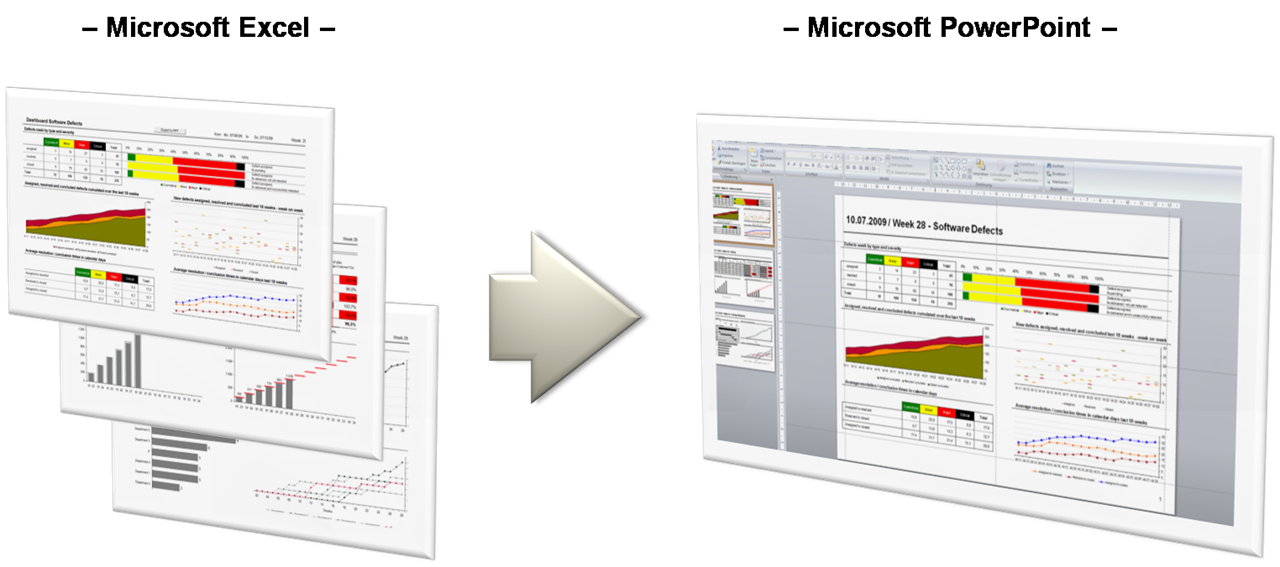
You are using a Microsoft Excel workbook to consolidate data from one or different sources and to create several dashboards for the visualization of the actual status based on this data. If you have to provide these dashboards as a report not in Excel, but as a part of a PowerPoint presentation, you can save a lot of time by using VBA to convert the Excel visualizations to PowerPoint slides with a couple of mouse clicks:
The step-by-step-tutorial
- Format all dashboards in your Excel workbook in a way that they are all of the same size (approximately) and will fit on one PowerPoint slide.
- Define range names for the cell ranges of all dashboards (in our example: “myDashboard01”, “myDashboard02”, etc.)
- Define range names for other dynamic information you would like to display in the title of your PowerPoint slides. In our example below I used “myReportDate” for the cell containing the actual Friday, “myReportWeek” for the cell with the actual week number and “myInputStartTitles” for the cell above the list with the titles of the 3 dashboards.
- Add a cell containing a scale factor. The VBA will reduce the size of the pictures in PowerPoint to this factor. Assign a range name to this cell (“myScaleFactor”).
- Add the VBA code (see next section) to a new module of your workbook and adopt the range names according to your definitions in steps 3 and 4.
- Add a button to one or all dashboards and assign the macro “ExporttoPPT” to it.
- Save and close the workbook, open it again and enable macros.
- Perform the macro by clicking on the button and find the optimal scale factor to be used for your PowerPoint template by trial and error.
That’s it.
Agreed, the set-up takes some time and effort. But if you are reporting your Excel dashboards in PowerPoint presentations on a regular basis and over a longer period, it definitely pays off.
The VBA Code
Here are the 60 lines of code you need to copy to a new VBA module of your workbook:
Option Explicit
Dim PP As Object
Dim PP_File As Object
Dim PP_Slide As Object
Private Sub CopyandPastetoPPT(myRangeName As String, _
myTitle As String, _
myScaleHeight As Single, _
myScaleWidth As Single)
Dim NextShape As Integer
Dim ReportDate As String
ReportDate = Range(“myReportDate”).Value & ” / Week ” & _
Range(“myReportWeek”).Value & ” – ”
Application.GoTo Reference:=myRangeName
Selection.CopyPicture Appearance:=xlScreen, _
Format:=xlPicture Range(“A1”).Select
PP.ActivePresentation.Slides.Add PP.ActivePresentation.Slides.Count + 1, 11
Set PP_Slide = _
PP_File.Slides(PP.ActivePresentation.Slides.Count)
PP_Slide.Shapes.Title.TextFrame.TextRange.Text = _
ReportDate & myTitle
NextShape = PP_Slide.Shapes.Count + 1
PP_Slide.Shapes.PasteSpecial 2
PP_Slide.Shapes(NextShape).ScaleHeight myScaleHeight, 1
PP_Slide.Shapes(NextShape).ScaleWidth myScaleWidth, 1
PP_Slide.Shapes(NextShape).Left = _
PP_File.PageSetup.SlideWidth \ 2 – _
PP_Slide.Shapes(NextShape).Width \ 2
PP_Slide.Shapes(NextShape).Top = 90
End Sub
Sub ExportToPPT()
Dim ActFileName As Variant
Dim ScaleFactor As Single
On Error GoTo ErrorHandling
ActFileName = Application.GetOpenFilename _
(“Microsoft PowerPoint-Files (*.ppt), *.ppt”)
ScaleFactor = Range(“myScaleFactor”).Value
Set PP = CreateObject(“Powerpoint.Application”)
If ActFileName = False Then
PP.Activate
PP.Presentations.Add
Set PP_File = PP.ActivePresentation
Else
PP.Activate
Set PP_File = PP.Presentations.Open(ActFileName)
End If
PP.Visible = True
CopyandPastetoPPT “myDashboard01”, _
Range(“myInputStartTitles”).Offset(1, 0).Value, _
ScaleFactor, ScaleFactor
CopyandPastetoPPT “myDashboard02”, _
Range(“myInputStartTitles”).Offset(2, 0).Value, _
ScaleFactor, ScaleFactor
CopyandPastetoPPT “myDashboard03”, _
Range(“myInputStartTitles”).Offset(3, 0).Value, _
ScaleFactor, ScaleFactor
Set PP_Slide = Nothing
Set PP_File = Nothing
Set PP = Nothing
Worksheets(1).Activate
Exit Sub
ErrorHandling:
Set PP_Slide = Nothing
Set PP_File = Nothing
Set PP = Nothing
MsgBox “Error No.: ” & Err.Number & vbNewLine & _
vbNewLine & “Description: ” & Err.Description, _
vbCritical, “Error”
End Sub
Calling the Sub “ExportToPPT” by clicking on the button displays a file open dialogue where the user can navigate to an existing PowerPoint presentation. After clicking “open”, the three dashboards will be added at the end of this presentation. If the user leaves the dialogue using the ESC key, a new presentation based on the standard PowerPoint template will be created. The sub uses the standard procedure “GetOpenFilename” to select the existing or create a new presentation and then calls the Sub “CopyandPastetpPPT” for all 3 dashboards. This Sub simply copies the defined dashboard in Excel as a picture and pastes it into a new PowerPoint slide.
The Download Link
Download the consolidated software development project workbook (all 3 episodes in one file), including the option to export all dashboards to PowerPoint with one single mouse click:
Download Export Excel Dashboards to PowerPoint (Microsoft Excel 2003, 502.5K)
All data in this workbook is made up.
You need to have Microsoft PowerPoint installed and to enable macros when opening the workbook.The tool is tested using Microsoft Excel and Microsoft PowerPoint in versions 2003 and 2007.
That’s it. Just another way of how to use VBA to export data and visualizations from one Microsoft application to another in order to save some time in your daily work. If you want to see other examples like this I recommend to also visit Gantt Charts are learning to fly or Export Microsoft Project Tasks to Outlook.
What’s next?
One of the next posts will start a new category here on Clearly and Simply: Optimization algorithms, implemented and visualized using Microsoft Excel and VBA.
Stay tuned.
Update on Monday, 6th of July 2015
You may also like the two follow-up articles about the export of Excel dashboards to other applications and file formats:
Comments
110 responses to “Export Microsoft Excel Dashboards to PowerPoint”
Wow, once again !
Congratulations!
Thanks for the great post on exporting Microsoft Excel dashboards to Powerpoint! I am sure many users will find this very helpful and save them a lot of time!
You should join the community of Excel users over on Facebook to share your tips: http://www.facebook.com/microsoftexcel
Cheers,
Bryn
MSFT Office Outreach Team
great work man…..
too awesome….
can i ask something???
if we want to place the text to particulat location on PPT slides…can it be done as we dont have bookmarks option in PPT ..
thanx a lot in advance…
again..gr8 work
ankit,
many thanks for your question and message. You can add an additional text box to the slides using the following line of code (or something similar):
PP_Slide.Shapes.AddTextbox (1, 100, 100, 200, 50).TextFrame.TextRange.Text = “This is a test message.”
Does this answer your question?
We are preparing dashboards using intelliview software. How to export dashboards to excel (there is a provision to export as pdf, but not as excel)
umakavi,
thanks for your comment. I do not know intelliViEW at all, so unfortunately I cannot tell you anything about its export features. Sorry.
Hi Robert,
when I download the “Download Export Excel Dashboards to PowerPoint (Microsoft Excel 2003, 502.5K)” and click on the macro export button, i received the folowing message:
“Error No 1004 Description: Method Range of object_global failed”
Can you tell me what causes this and how to fix it?
I think the export is great and would like to use it very much.
Robin,
thanks for your message and question. That’s strange. There have been several hundreds of readers downloading this and it seemed to work fine. I just retested it on a machine with Excel 2003 and it worked like a charm.
One (maybe rhetorical) question: You do have a full implementation of Microsoft Office including PowerPoint on your computer, don’t you?
The code itself should work fine. If there is a problem I suspect it has to do with the object libraries. Please go to the VBE (ALT-F11) and click on Tools and References. The following references should be activated:
– Visual Basic for Applications
– Microsoft Excel XX.0 Object Library
– OLE Automation
Is one of them missing?
Robert,
I have used your export code for some time now and it works really well! So surely, a belated thank you for another inspirational article is in order!
Today, I ran into the following little problem, which you may recognize…
On the sheet to be exported, I have a Worksheet_SelectionChange event that makes a highlighting of the current selected cell/data series in a table and some charts.
When the export code runs, it alters the range selection and thereby triggers the SelectionChange event. Consequently, the “highlighting” disappears.
So now I am thinking – in order to solve this problem, should I focus on the export code or the SelectionChange event? Can they coexist or would I have to lose one of them?
Ulrik,
many thanks for your comment and question.
Please try the following:
In the sub CopyandPasteToPPT replace the following 3 lines of code:
Application.GoTo Reference:=myRangeName
Selection.CopyPicture Appearance:=xlScreen, Format:=xlPicture
Range(“A1”).Select
by this line of code:
Range(myRangeName).CopyPicture Appearance:=xlScreen, Format:=xlPicture
This way the export procedure does not change the selection and your problem should be solved.
Let me know if this is still not working for you.
Robert,
That’s perfect – thanks for your help!
Hi guys , how can I use same approach to Paste-Special as a Windows Meta File?
Thank you in advanced
Juracy,
thanks for your comment.
Yes, this is possible. Simply replace the line
PP_Slide.Shapes.PasteSpecial 2
by
PP_Slide.Shapes.PasteSpecial 3
in the sub CopyandPastetoPPT.
However, the code posted above uses the enhanced metafile format which usually looks better than the windows metafile format. Have a look and decide for yourself.
This is awesome. Works great!
Any ideas what I would have to do to use this method to copy Grouped items to PowerPoint?
I have diagrams combined with some dynamic titles grouped together, and not perfectly aligned to cell numbers.
Can´t seem to create named ranges from a group?
Fredrik,
thanks for your comment. Sure, this is possible. Some changes in the VBA necessary, of course.
Instead of
Application.GoTo Reference:=myRangeName
Selection.CopyPicture Appearance:=xlScreen, Format:=xlPicture
you would need something like
Worksheets(1).Shapes(1).CopyPicture Appearance:=xlScreen,
Format:=xlPicture
This will copy the first shape (the first group of shapes / chart objects on the worksheet) to the PowerPoint slide.
I hope this will be helpful.
Hi Robert,
First of all, I have to thank you and everyone who gently posts these amazing things on the web! I have to create dashboards for a living and this is so much helpful I can’t thank enough!!
Although this works, it always gives me some error codes!
But that is not my biggest problem!
You have created a code for 3 worksheets but I only have 1 that I want to copy. Furthermore, I don’t really need the title because my dashboard has one already into it.
Unfortunately, when I try to delete some code row (I’m kind of educated guessing here) like
CopyandPastetoPPT “myDashboard02”, Range(“myInputStartTitles”).Offset(2, 0).Value, ScaleFactor, ScaleFactor
or
ReportDate = Range(“myReportDate”).Value & ” / Week ” & Range(“myReportWeek”).Value & ” – ”
I end up having an error with the code and it won’t work anymore.
So, could you help me out here please? So I can just export the entire worksheet where the dashboard is, and nothing else.
Many thanks!!
Nuno
Nuno,
many thanks for your comment and the appreciation. I am glad that my blog is helpful for your work.
You are writing about receiving some error codes with this workbook. Can you be a bit more specific about which kind of error codes and the circumstances they occur?
With regards to your other questions:
If you don’t need a title in your PowerPoint slide, simply delete the following line in the sub CopyandPastetoPPT:
PP_Slide.Shapes.Title.TextFrame.TextRange.Text = ReportDate & myTitle
If you have only one dashboard to be exported, simply delete the following lines in the sub ExportToPPT:
CopyandPastetoPPT “myDashboard02”, Range(“myInputStartTitles”).Offset(2, 0).Value, ScaleFactor, ScaleFactor
CopyandPastetoPPT “myDashboard03”, Range(“myInputStartTitles”).Offset(3, 0).Value, ScaleFactor, ScaleFactor
I just checked it and this works for me like a charm. If you still get errors, can you please describe which type of error you are receiving and at which line of code the workbook is stopping? Or, if you are allowed to, you can also send me your workbook by email and I will have a look.
I get the same message Robin gets when running this code (Error No 1004 Description: Method Range of object_global failed”) Everything that is identified in the alt+f11 is checked.
Green,
hmm. As I wrote in my answer to Robin, many people downloaded and used this workbook without any issues. If all the references I mentioned above are checked, it should work. Can you send your file by email (email link on the left column of the blog)?
I will have a look at it as soon as possible. Thanks.
You give a detailed description on how to export excel files to Powerpoint. Great job.
This is AWESOME code.. Thanks for sharing it
I’d like to paste into a blank slide (rather than one with a Title. My guess is I would use ppLayoutBlank… Can someone tell me where it needs to be placed?
Thanks for your comment.
Your assumption is correct, but you have to use the number instead of the PowerPoint constant:
1. Change the last parameter from 11 (ppLayoutTitleOnly) to 12 (ppLayoutBlank) in the line:
PP.ActivePresentation.Slides.Add PP.ActivePresentation.Slides.Count + 1, 11
2. Delete the following line (which assigns the text to the title):
PP_Slide.Shapes.Title.TextFrame.TextRange.Text = ReportDate & myTitle
I hope this will be helpful.
Great work. Thanks ! We needed to create a report in PowerPoint for one of our users and it worked like a charm!
this is still one of my favorite pieces of code. I,very added it to a number of weekly reports and has saved me hours of work.
The code works great but changing the order of the slides requires coding.
I’d like to set the output sort order from within the workbook.
I have added named ranges to the worksheet mySort1 , mySort2 etc for each myDash Dashboards. I have entered numeric values into these fields 1 thru 22
I’d like to output the Dashboards based on the “mySort” values.
Any ideas?
EiEi .. OhOh
EiEi .. OhOh,
thanks for your comment. There is always more than one way to skin the cat, but here is a pretty simple way how to accomplish this:
1. Create a range e.g. on the worksheet [Control General] with the range names of the dashboards in the first column, the titles in the second column and a number in the third column (1, 2, 3, etc.).
2. Give this three column range a name, e.g. “mySortOrder”
3. Define a new integer or long variable within the Sub ExportToPPT, e.g. Dim int_counter as Integer
4. Replace the lines
CopyandPastetoPPT “myDashboard01”,…
by the following lines of code:
Range(“mySortOrder”).Sort _
Range(“mySortOrder”).Cells(, 3), xlAscending
For int_counter = 1 To _
Range(“mySortOrder”).Rows.Count
CopyandPastetoPPT
Range(“mySortOrder”).Cells(int_counter, 1).Value, _
Range(“mySortOrder”).Cells(int_counter, 2).Value, _
ScaleFactor, ScaleFactor
Next int_counter
Range(“mySortOrder”).Sort _
Range(“mySortOrder”).Cells(, 1), xlAscending
5. Go to the worksheet [Control] and use the third column of the range “mySortOrder” to define the sort order of the dashboards (1 for the first dashboard, 2 for the second, and so on).
6. Run the sub ExportToPPT.
That’s it.
Let me know if you have any further questions.
Hi Robert,
Great piece of work, many congratulations!! I am using your VB Macro and its working fine, I am not a macro expert but I have modified this to suit my needs. Currently, the current Macro takes care of only three worksheets (mydashboard01 to mydashboard03), and I need to populate charts from 4 different worksheets to two different PowerPoint decks.
I have copied the first two worksheets (i.e. mydashboard01 and mydashboard02) to third and 4th worksheets, when I run the third worksheet macro, it generates desired output to the powerpoint. But when I try to run the 4th worksheet it throws up an error 1004: The text you entered is not a valid reference or defined name….I am unable to figure out the error…could you please help me resolve this…as mentioned I am trying to populate 1st two sheets on deck 1 and next two sheets on deck 2.
Thanks and Regards,
Sandeip
Sandeip,
thanks for your comment and question.
1. “the 4th worksheet throws up an error 1004”
I suspect you have either not defined the range name “myDashboard04” on your 4th dashboard or you may have a typo in the VBA line exporting this dashboard. Please double check the range name and the according line of code and see if you can find something.
2. “Populate to 2 different PowerPoint decks”
The easiest way of doing this would be to duplicate the sub ExportToPPT into ExportToPPT1 and ExportToPPT2 and to export the first two dashboards in the first sub and the other two in the second sub. Finally write an extra sub (e.g. ExportAll) simply calling those two subs and assign ExportAll to the command button on your worksheet.
If you can sanitize your workbook (take out the confidential data), you can also send me your workbook by email (email-link see above) and I will have a look.
Thanks Robert for the prompt reply, let me take a look at those range names once again. I will keep you posted.
Keep up the good work !!!
Regards,
Sandeip
Hi Robert,
I followed your step 2, its working fine now. Thanks for your timely advise.
Learning: Never edit a name range, delete and rewrite it.
Regards,
Sandeip,
good to hear. Let me know if you have any further issues.
Hi Robert,
On a seperate note, do you have any VB code for powerpoint which can enable me to save the completed decks on a SharedPoint or a Shared Drive?
Any help in this regard will be highly appreciated.
Thanks
Sandeip,
you could easily change the existing code to save the created PowerPoint with a defined file name to a defined path and close the PowerPoint application afterwards. This should be no problem.
Best practice would probably be to define a cell range in the workbook and specify the path and filename there (avoid hardcoding in the VBA). No big deal, just a couple of additional lines of code.
I am getting the global error as well, was there a fix identified for this??
Lauren,
unfortunately neither Robin nor Green came back to inform us whether their issues were fixed by setting the correct references to the libraries as I recommended in my reply to Robin. Anyway, please refer to my answer to Robin above and check the library references. If this does not fix the problem, please send me your workbook by email.
Hi Robert,
This code is the best. I follow the instructions and changed “mydashboards” to “Uttam1”, 2 and three and leave the rest same as yours. I am trying to pull data from specific part of the worksheets. But i am getting this error:
Error No.: 1004
Description:Method ‘Range’ of object’_Worksheet’ failed
Is there any way to fix this?
Thanks in advance.
Any help is appreciated.
Thanks
Uttam,
the named ranges “myDashboard01”, etc. are used in the VBA to specify the ranges to be exported. When you change the named ranges in the workbook, you also have to change the names in the VBA code accordingly.
Hi Robert,
I did change the name accordingly in the VBA and work book but i am gettting the error descibed above.
Thanks
Uttam,
a few questions:
1. Does my original workbook posted above work on your computer (before making any changes to it)?
2. If you changed only the range names in the worksheet and in the VBA, it should work. Please double check, maybe you have a typo somewhere?
3. If there is no typo, can you send your workbook by email? I will have a look then and get back to you as soon as possible.
Thank you so much it works now. But how to assign multiple ranges from one worksheet, so that they all go to same slide?
Thanks
Uttam,
the code adds a new slide to the PowerPoint Deck for each named range to be exported. If you want to have them on one PPT slide, you have to adjust the code.
The .Add method would then only be executed for the first named range to be exported. The other named ranges would not be exported to a new, added slide, but to the one created for the first named range. In a nutshell: you either need 2 different subs, one for the first named range and one for all others or you use the same sub, but pass a parameter defining whether a new slide shall be inserted or not. It goes without saying that you also have to position the exported images where you want to have them if you export more than one Excel range to one slide.
I have to export multiple ranges in one slide and also others slide containing different ranges. I am learning VBA. So, it would be great if you could tell me what part i have to change and code needed for that change?
Thank you so much for your help.
Uttam,
this is possible, but too much to explain it in a comment. I will send you a solution by email.
Hi Robert,
Thank you so much it works like a charm. Is there any way to put border around the picture?
Thanks
Hi Robert,
it works well.. was wondering if one could add the excel sheet name as the slide title..
Congratulations for the post, very good!
Could easily implement but the graphic quality was awful, can you help me?
Uttam,
thanks for your comment and sorry for the late reply.
Sure, this is possible. Add the following line at the end of the Private Sub CopyandPastetoPPT:
PP_Slide.Shapes(NextShape).Line.Visible = True
Siddarth,
thanks for your comment and sorry for the late reply.
Sure, this is possible. You have 2 options:
Option 1: the titles of the slides are defined on worksheet [control]. You can change the titles there by manually typing in the sheet names.
Option 2: change the VBA code
Replace
CopyandPastetoPPT “myDashboard01”, Range(“myInputStartTitles”).Offset(1, 0).Value, ScaleFactor, ScaleFactor
by
CopyandPastetoPPT “myDashboard01”, Worksheets(1).Name, ScaleFactor, ScaleFactor
Dine,
thanks for your comment.
Actually the VBA code does nothing else than copying the dashboard as a picture and inserting it into PowerPoint. If you do this manually (copy as a picture in Excel and paste it into your PPT slide), do you get a better quality of the image?
Thanks for the contact!
When copying and pasting the chart power point in the image is perfect. However when exporting, the shadows are pixelated.
I tested another macro where it does not happen, however the script is less complete and I could not identify the problem alone: (
Dine,
interesting. I never had problems with the quality of the images in PPT. Can you send the other VBA code and the PowerPoint with both images by email (email link see at top of the blog) so that I am able to see the difference and analyze the root cause?
Robert,
I sent the reference files for mail so that you can try to analyze.
Thank´s
Robert,
I have ppt template and i want to use that template as background to the powerpoint slides. And also how do you put slide reference to the slides? I know i am asking you a lot but it would be nice if you could show me the way to do it.
Thank you so much.
Uttam,
Re: define a template
To define a PPT template to be used if the user skips the file open dialogue when exporting (e.g. by pressing ESC), you have to change the code. In the sub ExportToPPT delete the following IF clause:
If ActFileName = False Then
[…]
End If
and replace it by the following code:
If ActFileName = False Then
ActFileName = “C:\mytemplate.potx”
End If
PP.Activate
Set PP_File = PP.Presentations.Open(ActFileName)
You have to adjust the full path and filename of your template, of course.
Re: slide reference
I am not sure what you mean by “slide reference”. If you are referring to slide numbers: you can do this using VBA, but I would recommend adding a slide number to the slide master of your template in PowerPoint.
Hi Robert,
Thankyou, it works very well.Can you send the code necessary to assign slide numbers through vba?
Thanks
Uttam,
have a look here for instance:
VBA Express Add Slide Numbers PowerPoint
or at the MSDN Library in general:
MSDN Library PowerPoint
Hi Robert,
I have to insert slides that i am creating using vba in my template slides, which are blank. So is there any way to do that and sorry for confusion.
Thank you so much
Uttam,
the code provided above uses the .Add method to add a slide to the presentation. You can use the same method to add a slide to a template. If you want to add a blank slide, just specify the layout of the slide in the according parameter you pass to the method.
Hi Robert,
Oh sorry, I meant to say that i have to insert slides which i am creating through VBA in their respective place in template(don’t want to add new slides in the template). As of right now, when i run the macro, it is creating new slides to the template, which i don’t want to happen. So, is there any way to do it? I am asking you a lot but it would be great if you could help me with this one. Sorry for the whole confusion.
Thank you so much.
Uttam,
sure, this is possible. First you have to delete the line which inserts a new slide using the .Add method. In the following line of code you have to replace the “PP.ActivePresentation.Slides.Count” by the slide number where you want to insert the image.
hi,
what exactly do i have to replace in the “PP.ActivePresentation.Slides.Count”? what is the code for the slide number and where do i have to put it?
Thank you so much.
Uttam
Uttam,
replace
PP.ActivePresentation.Slides.Add PP.ActivePresentation.Slides.Count + 1, 11
Set PP_Slide = PP_File.Slides(PP.ActivePresentation.Slides.Count)
by e.g.
Set PP_Slide = PP_File.Slides(3)
and the image will be inserted on the third slide of your presentation.
Hi,
this code works well. And is there any way to insert multiple images in different slides in my presentation? Maybe specified each image to go to their respective slide.
thanks.
Uttam,
define an additional parameter for the sub CopyandPastetoPPT (e.g. slidenumber), pass the desired slide number to the sub and use the parameter in the Set statement, e.g.
Set PP_Slide = PP_File.Slides(slidenumber)
Hi,
Can you give me an example on how to pass slide number to the sub and defining a parameter?
Thanks
Uttam,
have a look here for instance:
MSDN Library: Passing Arguments Efficiently
Hi,
I tried, but couldn’t figure out the workable code to carry out this command. it would be great, if you you could help me here.
thank you so much.
Uttam,
I appreciated your comments and I am trying to be helpful and answer as many questions as possible.
However, defining arguments of a procedure and passing values to a sub or function is one of the basic concepts of VBA. If you want to create or change code in your Excel models, you will have to learn VBA by e.g. reading a book or taking part in an Excel course. There is no easy way out. I can’t teach you VBA in the comment section of my blog. I am sorry.
I understand and i am going to take classes on excel but can you please help me at this time?
thanks
Uttam,
I just sent you an email with a possible solution.
great work man…..
awesome….
Can i ask a question?
how about if i want to edit an existing embedded excel file on the PPT. using the inputed data from an excel file. can you send the solution on my email? thanks
Sherwin,
you have to change 2 lines in the sub CopyandPastetoPPT:
Replace
Selection.CopyPicture Appearance:=xlScreen, Format:=xlPicture
by
Selection.Copy
and
PP_Slide.Shapes.PasteSpecial 2
by
PP_Slide.Shapes.PasteSpecial 10
hii Robert…
i want to merge 2 ppt’s using a button on excel sheet using VBA…i have their path..and want a code to add them as one ppt and able to save new ppt at a specific new path
Ravindra,
have a look at one of the following links, for instance:
Stack Overflow – Combine Slides from Multiple Presentations
MS Office Developer Center – Merge 2 Decks into one
PPTFAQ – Insert a slides from a group of presentations
All sites provide VBA code snippets to merge PowerPoint presentations. You may have to do a few adjustments to meet your requirements, but this should get you started.
hey Robert,
i tried these all but it didn’t work for me..
i am not experienced guy in vb..i simply want to give my paths of ppt’s and after merging want to save in same folder as new ppt…can you help
with 1st code of link 3..i am only able to create a text file that consist all presentations name but didn’t merge..
Ravindra,
here is one way how you could do this:
Download merge_2_ppt_files.xlsm (19.2K)
today i download your file but it only shows a excel sheet with a button…i can’t find any code..how i try…plz tell me???
Hii Robert..i download your file and try to code as it is———-
Attribute VBA_ModuleType=VBAModule
Sub Merge2PPTs
Option Explicit
Sub Merge2PPTs()
Const TARGETFILENAME = “Merged PPT.pptx”
Dim PP As Object
Dim PPTargetFile As Object
Dim varSourceFileName1 As Variant
Dim varSourceFileName2 As Variant
‘ On Error Resume Next
‘ User dialogue for getting the source file names
varSourceFileName1 = Application.GetOpenFilename(“Microsoft PowerPoint-Files (*.pptx), *.pptx”, , “Select first source presentation”)
varSourceFileName2 = Application.GetOpenFilename(“Microsoft PowerPoint-Files (*.pptx), *.pptx”, , “Select second source presentation”)
‘ Make a copy of the first presentation and save it with the name of the trarget presentation
FileCopy varSourceFileName1, ActiveWorkbook.Path & “\” & TARGETFILENAME
‘ Open the target file
Set PP = CreateObject(“Powerpoint.Application”)
PP.Activate
Set PPTargetFile = PP.Presentations.Open(ActiveWorkbook.Path & “\” & TARGETFILENAME)
‘ Insert all slides from the second source file
PPTargetFile.Slides.InsertFromFile varSourceFileName2, PPTargetFile.Slides.Count
‘ Clean Up
Set PPTargetFile = Nothing
Set PP = Nothing
End Sub
End Sub
but i removed
Attribute VBA_ModuleType=VBAModule
Sub Merge2PPTs
Option Explicit
because it shows errors…
now i able to create a new ppt but problem is that in the new ppt there is only 1st ppt not second and it said that powerpoint could not open this ppt…
my code is following…please help
Sub Merge2PPTs12()
Const TARGETFILENAME = “Merged.pptx”
Dim PP As Object
Dim PPTargetFile As Object
Dim varSourceFileName1 As Variant
Dim varSourceFileName2 As Variant
‘ On Error Resume Next
‘ User dialogue for getting the source file names
varSourceFileName1 = Application.GetOpenFilename(“Microsoft PowerPoint-Files (*.pptx), *.pptx”, , “Select first source presentation”)
varSourceFileName2 = Application.GetOpenFilename(“Microsoft PowerPoint-Files (*.pptx), *.pptx”, , “Select second source presentation”)
‘ Make a copy of the first presentation and save it with the name of the target presentation
FileCopy varSourceFileName1, “D:\PPT’s Example for VBA\” & TARGETFILENAME
‘ Open the target file
Set PP = CreateObject(“Powerpoint.Application”)
PP.Visible = True
Set PPTargetFile = PP.Presentations.Open(“D:\PPT’s Example for VBA\” & TARGETFILENAME)
‘ Insert all slides from the second source file
PPTargetFile.Slides.InsertFromFile varSourceFileName2, PPTargetFile.Slides.count
‘ open merged ppt
Set PP = CreateObject(“Powerpoint.Application”)
PP.Visible = True
PP.Presentations.Open (“D:\PPT’s Example for VBA\” & “Presentation1”)
‘ Clean Up
Set PPTargetFile = Nothing
Set PP = Nothing
End Sub
Ravindra,
the code in the workbook I posted for download works like a charm for me. After you clicked the button, you are prompted twice to select the 2 presentations in a file open dialogue. The code then makes a copy of the first presentation within the folder of the, active workbook, names this copy “Merged PPT.pptx”, opens it and inserts alls slides of the second presentation at the end of this presentation (i.e. “merges” the 2 presentations to one).
I do not understand what you are trying to do with your modifications of the code.
As I said, this works like a charm for me. I do not see why it should not be working for you, too.
Maybe you try again with my workbook and debug where the code is stopping and see what the error message is saying.
hii robert,
Sorry for delay…i tried your code but i don’t know why it is not working…it asks me ppt’s which i want to merge..but it only copy 1st ppt at desired location..i am not able to copy 2nd ppt…can i asks how many module you created for it..
Hii Robert,
first of all thanks to provide such precious knowledge to us…i want to ask one thing..i want to make a new ppt with existing ppt’s…but i want that it should be my choice that which slide of existing ppt’s, i will insert in new ppt means i can take 2nd slide of 1st ppt,3rd slide of 2nd ppt,1st slide of 2nd ppt to make new ppt…is this possible????
Thanks in advance!!!
Ravindra,
as I said, it works for me (Excel 2013) and if the code doesn’t stop anywhere, I do not see why it should not work for you. There is only one sub in one module and only 17 lines of code (see VBE).
Miller,
yes this is possible, but I do not understand why you want to do this using VBA (you’d be faster doing this manually in PowerPoint) and even if it is a reoccurring task, I would do it in PowerPoint, not in Excel.
hii robert..
thanks…i will try again for it with your code!!!
yehh we can do it manually but i want to do it only by excel vba…is there any way to do it…
Miller,
sure, you can do this in Excel with VBA: you define 2 objects (the presentations), let the user select which presentation is the source and which is the target (e.g. with Application.GetOpenFilename), activate the source presentation, navigate to the slide you want to copy (.Slides()), copy the slide (.Copy method), switch to the target presentation and paste it (.Paste) e.g. at the end (.Slides.Count+1).
Dear Robert,
First of all I would like to thank you very much for sharing your knowledge! Your code works like a charm, but I am stuck on two issues:
1: I would like VBA to paste the range in a template slide with a predefined set-up.
If I use your code, it will delete a line underneath the title, probably because now I am pasting it into a Title Only slide (which doesn’t have the line in the predefined template).
My solution was by changing the , 11 in this part: PP.ActivePresentation.Slides.Add PP.ActivePresentation.Slides.Count + 1, 11, to for instance 5, to make it add a sheet with Title and Content (which does contain the line in the pre-defined template).
However this doesn’t work, and will change the total set-up.
2. I would like the code to paste the named Range into Powerpoint, using the HTML format for tables, so I can later adjust the contents of the table. It’s for 100+ slides per month, so doing this would save me a lot of time.
I tried replacing this part of the code:”Selection.CopyPicture Appearance:=xlScreen, Format:=xlPicture” with Selection.Copy <...>PP_Slide.Shapes.PasteSpecial 2″, and changing 2 for different numbers (1 till 20). But nothing worked.
Do you have a solution for these? Many thanks in advance!
Mitchel
Mitchel,
the PowerPoint constant for slide layout with an object is 16. However, the Placeholder property in PowerPoint has no Paste or PasteSpecial method. If you want to insert a picture into a placeholder, you have to specify a link to a picture. I.e. you can’t directly insert the content of the clipboard. You could save the picture temporarily somewhere, insert the file into the placeholder and then delete the picture afterwards.
With regards to the HTML export: the PasteSpecial parameter would be 8. I tried, but this does not work: I get an error message saying “Invalid request: The specified data type is unavailable”. I assume there is a way to export from Excel to HTML in PowerPoint, but apparently not with the PasteSpecial method.
Dear Robert,
Thank you for your reply. My first question considering the placeholder is solved now.
However, I still can’t figure out how to paste using HTML format. Is there a way to work around this i.e. a different type of code to paste as HTML?
Best, Mitchel
Mitchel,
as I wrote above, I assume there is a way, but I do not know it off the top of my head. I am sorry, I have to refer you to Google and the Excel/PowerPoint/VBA forums.
Ok! No problem!
Thank you for your help!
I have one more question, and then I will get out of your hair: how do I change the background color of a new slide using the code?
Once more, thank you for your help
Never mind, I found the answer already, since your code is very flexible and easy to read!
Hi Robert…great stuff here! Have you had any luck using Excel 2013 and an .xslm file? I am able to run your code just fine in the native xls, but my dashboards are in xslm version because I require slicers, powerpivot, etc.
Thanks!
Mike,
I never had any feedback about issues with .xlsm workbooks. I just double checked (I simply saved the .xls as .xlsm) and the code works like a charm for me in Excel 2013.
Hi Robert,
Brilliant code – found really useful.
Can i ask though i’ve managed to change the title font size,box colour and also position of the text frame – however im really struggling to change the alignment of the text in the Title Box.
I’ve tried using:
‘PP_Slide.Shapes.Title.TextFrame.TextRange.ParagraphFormat.Alignment = ppAlignCenter
But it doesn’t like it at all. Any ideas?
Thanks in advance.
Leon
Leon,
thanks for your comment and your kind words. You are on the right track with your line of code. Simply replace the constant ppAlignCenter by its value (i.e. 2) and you should be good to go.
Hi Robert,
Your code is amazing. Just what I needed. Thank you. The recipient of the PP presentation would like to highlight the important points in the slides but can’t because they are pictures. Is there a way to paste the Excel data as not a picture? Thanks again.
Tommy,
the easiest way would be to do the highlighting of the important points directly in Excel before exporting it as a picture to PowerPoint. If this is not an option, you have to embed the Excel workbook in the PowerPoint presentation instead of inserting the picture. With an embedded Excel workbook, the recipients can do the highlighting directly in PowerPoint by editing the embedded Excel workbook.
Hi Robert,
Many thanks for this great code.I added an additional textbox to the slides by using the following line of code:
PP_Slide.Shapes.AddTextbox (1, 100, 100, 200, 50).TextFrame.TextRange.Text = “text”
What is the code for formatting this textbox(font size,color, style, etc.)
Thanks in advance!
Api,
have a look here:
https://msdn.microsoft.com/EN-US/library/office/jj228306.aspx
First of all, thanks a lot for the awesome post and file. I downloaded the file myself and found it really useful. There is just one question that I have. When I press the button to “Export to PPT”, it does transfer the dashboard to ppt but is out of range. Too Big, is there a way to make it fit the ppt page.
Ravindra,
reduce the scale factor (cell C19 on worksheet [Control General]).
I was able to make it smaller, another query. Is it possible to add tables as well to the ppt. I have some tables with data and charts. I was able to add the chart but not the tables.
Ravindra,
the code posted for download above simply copies a defined cell range as a picture and inserts the picture into PowerPoint. It doesn’t matter what is in this cell range, a chart or a table or a freeform shape. Against this background, I do not understand your question, I am sorry.
Hi Api,
Unless you require data-driven dashboards, I thought you might be interested to see the dashboard templates available at SlideModel.
Here is the url:
http://slidemodel.com/templates/tag/dashboard/
Regards,
J.
Even though this thread is quite old, there is something new which allows it to automatically export Excel to Powerpoint without writing code. Its a software called SlideFab (http://slidefab.com) This might be a solution for all those who don’t have the time to write VBA themselves, especially when things get more complicated.
Hi Uttam, can you please email me the solution that was sent by Robert to you. thanks
My Excel dashboard can’t fix the length and wide size. Pls advice how can to fix the size in the screen
David,
I am not sure if I understand your question correctly.
The code in the workbook posted above creates images of the named ranges (“myDashboard01”, “myDashboard02” and “myDashboard03”), scales them according to the scaling factor defined in the named range “myScaleFactor” and exports the images to a new or existing PowerPoint presentation. What you export is defined by these named ranges. If you want to change something, you need to change the ranges, the names are referring to and/or the scale factor.
I do not understand what you mean by “how to fix the size in the screen”. I am sorry.