How to properly import a custom geocoding into Tableau for countries outside the US and the UK
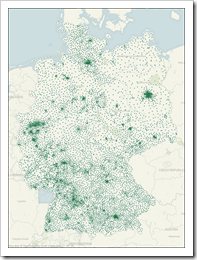 I am using Tableau for more than 3 years now and I am living in Germany. To my own surprise I noticed these days that I never used the Import Custom Geocoding feature of Tableau Software. Don’t ask me why. I always had the latitudes and longitudes in the underlying database, I guess.
A couple of days back, however, a colleague of mine asked for my assistance. He tried to make German postcodes available as a new geographic role in Tableau Software by using Custom Geocoding. He hit a roadblock: it simply didn’t work.
Thus, I had a look at this feature for the very first time and I faced the same problem: I couldn’t manage to properly import the data. More precisely: I couldn’t import the Custom Geocoding at all!
Even following a step-by-step tutorial described in the Tableau Knowledge Base (Importing Numeric Geographical Roles) led to the same issue: no import of the Custom Geocoding possible. Problems like this simply drive me nuts. After digging deeper into this, I finally found the root cause of the problem and a solution.
Today’s post describes how to properly import Custom Geocoding data in Tableau Software, if you are living outside of the US and the UK. The article is based on the example of German postcodes (“Postleitzahlen”, “PLZ2” and “PLZ5”), but the technique should be applicable to any other data set as well.
The challenge and the background
Tableau automatically recognizes by default a set of geographic roles like countries, states, counties and postcodes in the underlying data. However, for countries outside the US, the level of detail is limited. In a dataset of Germany, for instance, Tableau only recognizes the names of the 16 states. German postcodes are not identified by Tableau.
For your understanding: German postcodes have 5 digits. Almost 8,200 of them are geographic areas. Using only the first 2 digits of the postcodes divides Germany into 95 regions. That’s right, 95 not 99. 05, 11, 42 and 63 are unused or no geographic areas, but this doesn’t matter here. Most of the time it will be sufficient to use the first 2 digits for geographical analysis and visualization. However, sometimes people want to go one step further and look at the complete PLZ5 postcode. And here is our challenge: import 2 new geographic roles into Tableau: the 2 digit post code (called “PLZ2”) and the 5 digit postcode (called “PLZ5”).
Tableau offers a built-in feature to add further geographic levels of your data: Custom Geocoding. Custom Geocoding allows you to import a table that assigns latitudes and longitudes to any given geographical category. In our example of German postcodes, we need an input file with the postcodes and their according latitudes and longitudes. More precisely we need 2 input files: one for PLZ2 and one for PLZ5. Importing such a file into Tableau as Custom Geocodes creates a new geographic role in Tableau. After a successful import, you can assign this geographic role to a dimension and let Tableau plot the data at this level on a map. No need to have the latitudes and longitudes in the source data anymore.
That’s for the theory.
Now for the practice. I thoroughly read the Tableau Manual and the Tableau Knowledge Base, but it didn’t work straight away:
The problem – the regional settings
Of course I followed the instructions in the Tableau Knowledge Base article (Importing Numeric Geographical Roles) step by step. It turned out that the key to importing Custom Geocoding is a schema.ini file that configures the Microsoft Jet database engine. The Knowledge Base article recommends the following file (adapted to my data):
[PLZ2.csv]
ColNameHeader=True
Format=CSVDelimited
Col1="PLZ2" Text
Col2="Latitude" Double
Col3="Longitude" Double
I used this schema.ini file. However, at the end of the import procedure, I received a warning message:
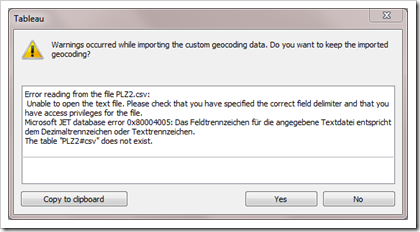
This warning included some cryptic messages that didn’t tell me much (“unable to open the text file” and “the table PLZ2#csv does not exist”). However, the error message from the Microsoft JET database provided me with the idea what could be wrong: it said “text file specification field separator matches decimal separator or text delimiter” (in the screenshot above this text is in German).
Aha! It is a regional settings problem: in the US and the UK, a point is used as the decimal separator and a comma as the thousand separator. In Europe (except for the UK) it is vice versa. Subsequently CSV files use a semicolon as the field delimiter.
I created the CSV from a Microsoft Excel workbook and the output looked like this:
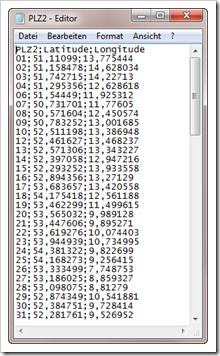
Simple minded as I am, I opened this CSV file and replaced all commas by a dot and all semicolons by a comma. I tried again to import into Tableau. Same problem, same warning message. Simply changing the CSV to US standard does not help. If you are running the import on a European Microsoft installation and specify the format as “CSVDelimited” in the schema.ini file, the Microsoft Jet engine expects to find a semicolon as the field separator.
The solution
Knowing the root cause of the problem is half the battle won. We already finished step 1 of the Feynman problem-solving algorithm:
- write down the problem
- think very hard
- write down the answer
Now let’s proceed to step 2 and 3:
Changing the CSV file is obviously not the solution. We rather need some different settings in the schema.ini file.
Here is the step-by-step:
- Export the data (i.e. the geographic role and the latitude and longitude) from your database or Microsoft Excel to a CSV file and leave the CSV as it is. Let’s assume the name of the geographic field is PLZ2 and the name of the file is PLZ2.CSV.
- Open any given editor (like Notepad), type in following statement and save this file as schema.ini:
[PLZ2.csv]
ColNameHeader=True
DecimalSymbol=,
Format=Delimited(;)
Col1="PLZ2" Text
Col2="Latitude" Double
Col3="Longitude" DoubleThe differences to the schema.ini file described in the Tableau Knowledge Base are
- the additional line 3 defining the decimal symbol as a comma and
- using “Delimited(;)” as the format instead of “CSVDelimited” in line 4
- If you want to import more than one geographic role into your custom geocoding, (e.g. PLZ5), you have to export another CSV file (see step 1) and insert according lines at the end of the already existing schema.ini file (see step 2): Insert exactly the same 7 lines described above and change “PLZ2” to “PLZ5” in the first and fifth line.
- Create a new folder (e.g. within your Tableau Repository) and copy the CSV files and the schema.ini file to this folder. I recommend not using a temporary folder, since this folder will be referred to by Tableau if you want to refresh your Custom Geocoding later.
- Open Tableau and a new Tableau workbook (File|New). You do not have to connect to data. Select Data|Geocoding|Import Custom Geocoding and browse to the folder created in step 4. Click OK and the import will start (the procedure may take a couple of minutes).
- The Tableau Knowledge Base article states “you should receive a message telling you that the import was successful”. I haven’t seen such a message. Well, fair enough. From my point of view the absence of warnings or error messages is evidence enough for a successful import.
- Finally, connect to a data source including a geographic category (e.g. PLZ5), right click on this dimension, select Geographic Role and choose PLZ5:
You will notice that after setting the geographic role, two additional measures will be available: Latitude (generated) and Longitude (generated).
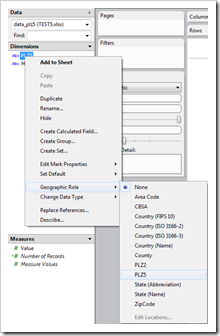
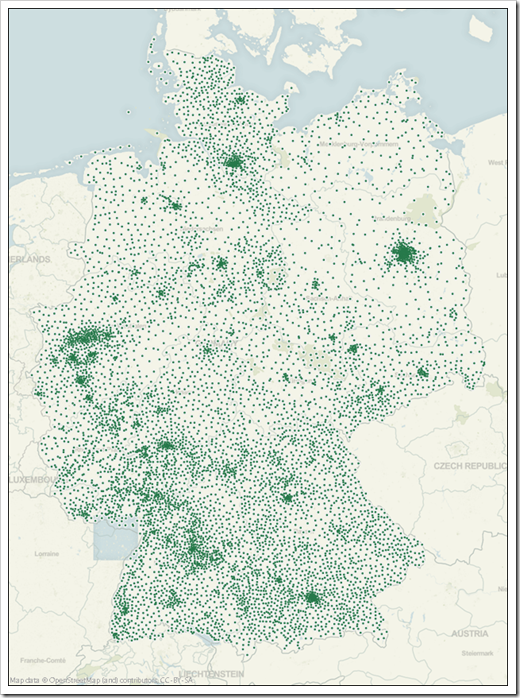
That’s it. If you double click on the dimension PLZ5, it will go to the level of detail shelf and latitude and longitude will automatically be placed on the columns and the rows shelf. You will see the following map:
The Download Link
I assume most of you will not be interested in the data sets used in this article. However, for what it’s worth: here are the 2 CSV files and the schema.ini file in one zipped folder for free download:
Download Custom Geocoding German Postcodes (zipped folder, 87.6K)
What’s next?
Before I will finally publish the articles I already announced several times before, the next post will provide a supplemental quick tip to Custom Geocoding.
Stay tuned.
Comments
7 responses to “Tableau Custom Geocoding outside the US and UK”
THANKS- THIS IS ENORMOUSLY HELPFUL…I JUST BOUGHT A BIG LICENSE WITH TABLEAU FOR MY STARTUP; BETTING THE RANCH ON THEIR SOLUTION. THEY PROMISED THEIR INTERNATIONALIZATION IS IN THE WORKS– THANKS SO MUCH FOR TAKING THE TIME TO WRITE THIS OUT.
BEST,
CHRIS BRINKMAN
About this problem (, or 😉 There is an option called “Regional and Language Options” inside Control Panel in Windows. Here you should change List Separator which will give “,” or “;” in Excel when saving a csv file. Hope this help.
Here is a link explaning step by step:
http://support.microsoft.com/kb/307938
Juan,
many thanks for your comment.
You are absolutely right. When I hit this roadblock, I tried different things but I never thought of simply changing the regional settings of the operating system. Well, I guess sometimes you do not see the wood for the trees…
I just tried your solution and it works like a charm. Thank you for sharing this great idea.
Hallo Robert,
ich arbeite seit einigen Tagen mit Tableau für ein Startup-Unternehmen. Im Moment versuche ich, Längen- und Breitengrade (als Dezimalen) für Adressen zu integrieren. Höchtwahrscheinlich ist das ganze eine Leichtigkeit, allerdings scheitere ich seit Tagen schon an diesemm Problem. Vielleicht könnte Sie mir diesbezüglich helfen.
Beste Grüße
Marius
Hallo Marius,
klar, kein Problem. Schicken Sie mir doch bitte eine E-Mail (E-Mail-Adresse siehe oben) mit einer kurzen Beschreibung des Problems, dann sehe ich mir das mal an.
Viele Grüße
Robert
Thank you a lot friend!!! You save my life….eternity grateful
best regards from Chile